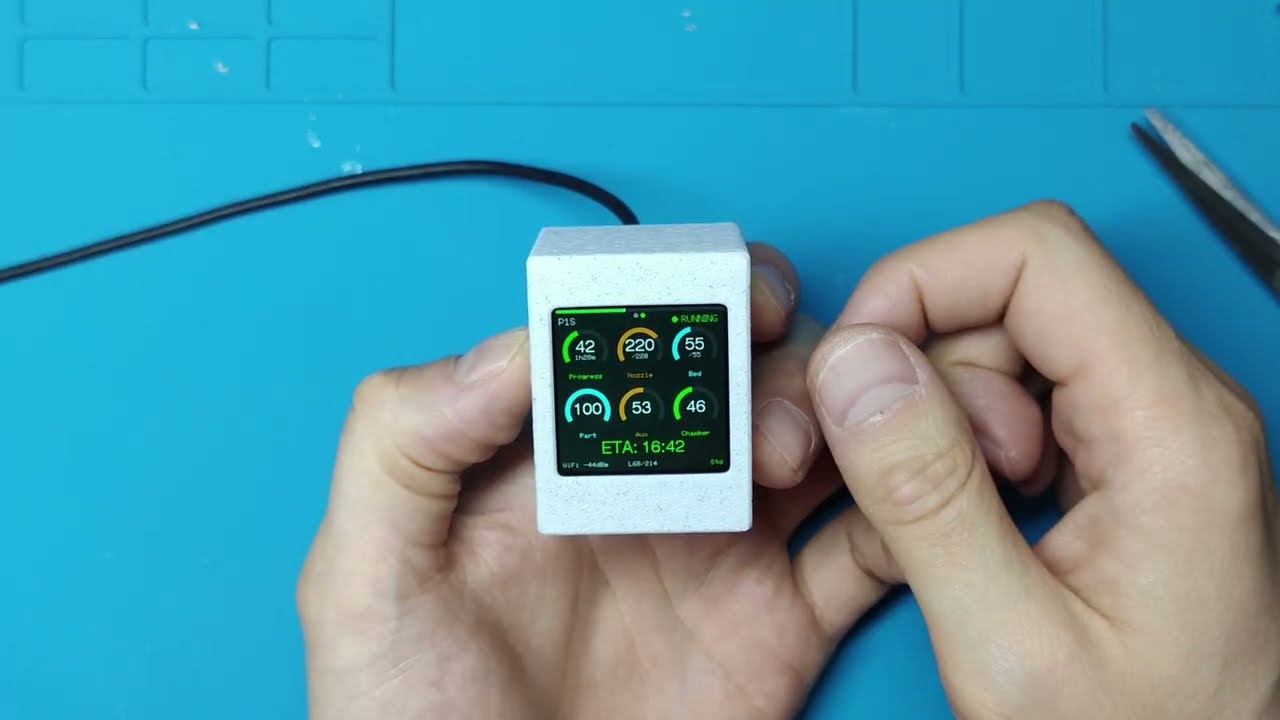
Dedicated Bambu Lab printer monitor built with ESP32-S3 Super Mini and a 1.54" 240x240 color TFT display (ST7789).
Connects to your printer via MQTT over TLS and displays a real-time dashboard with arc gauges, animations, live stats, and optional buzzer notifications.
Beta support for CYD 320x240 displays is also available.
| Connection Mode | Printers | How it connects |
|---|---|---|
| LAN Direct | P1P, P1S, X1, X1C, X1E, A1, A1 Mini | Local MQTT via printer IP + LAN access code |
| LAN Direct (Developer Mode) | H2S, H2C, H2D | LAN-only mode + Developer Mode required - see note below |
| Bambu Cloud (All printers) | Any Bambu printer | Cloud MQTT via access token - no LAN mode needed |
H2 series LAN mode: H2S, H2C, and H2D printers require both LAN-only mode and Developer Mode enabled in printer settings for local MQTT to work. Without Developer Mode, the printer accepts connections but does not respond to status requests. If you prefer not to enable Developer Mode, use Bambu Cloud mode instead.
Tip: Use "Bambu Cloud (All printers)" if you don't want to enable LAN/Developer mode on your printer (for example to keep Bambu Handy working), if your ESP32 is on a different network than the printer, or if your printer only supports cloud mode (P2S).
When using Bambu Cloud, BambuHelper connects through Bambu Lab's cloud MQTT service. Here is what you need to know:
- No credentials are stored - BambuHelper never asks for your email or password. You extract an access token from your browser and paste it into the web interface.
- Only the access token is stored in the ESP32's flash memory. This token expires after about 3 months, at which point you simply paste a new one.
- Read-only access - BambuHelper only reads printer status. It never sends commands or modifies printer settings.
- Same approach as other community projects - this is the same authentication method used by the Home Assistant Bambu Lab integration, OctoPrint-Bambu, and other trusted third-party tools.
| Dashboard | Web Interface - Settings | Web Interface - Gauge Colors |
|---|---|---|
| Preview | Notes |
|---|---|
CYD / ESP32-2432S028 support is available and currently beta. This is the larger 320x240 display version. Flashing is done the same way as the standard 240x240 build, but on ESP Web Flasher you should set Baudrate: 115200 before clicking Connect. This low baudrate note is for CYD only. The standard ESP32-S3 240x240 version does not require this change. Tested behavior so far: The first connection attempt may fail - click Disconnect in the web tool, then Connect again and it should work on the second try. Do not physically unplug the USB cable between attempts - just use the buttons in the web flasher. Use this firmware If the display colors appear reversed (white background instead of dark), go to the web interface under Display and enable Invert display colors (fix white background). |
- Live dashboard - progress arc, temperature gauges, fan speed, layer count, time remaining
- H2-style LED progress bar - full-width glowing bar inspired by Bambu H2 series
- Anti-aliased arc gauges - smooth nozzle and bed temperature arcs with color zones
- Animations - loading spinner, progress pulse, completion celebration
- Web config portal - dark-themed settings page for WiFi, network, printer, display, power, and buzzer settings
- Network configuration - DHCP or static IP, with optional IP display at startup
- Display auto-off - configurable timeout after print completion, auto-off when printer is off
- NVS persistence - all settings survive reboots
- Auto AP mode - creates WiFi hotspot on first boot or when WiFi is lost
- Smart redraw - only redraws changed UI elements for smooth performance
- Customizable gauge colors - per-gauge arc/label/value colors with preset themes
- Multi-printer support - monitor up to 2 printers simultaneously with auto-rotating display (ESP32-S3 only - CYD/C3 limited to 1 printer due to RAM)
- Smart rotation - automatically shows the printing printer; cycles between both when both are printing
- Physical button - optional push button or TTP223 touch sensor to cycle printers and wake display
- Optional buzzer - passive buzzer notifications for print finished, connected, and error events
- OTA updates - firmware can be updated from the web interface
- CYD display support (beta) - support for ESP32-2432S028 / 320x240 displays
- Exponential backoff - reconnect attempts to offline printers gradually slow down to conserve resources
| Component | Specification |
|---|---|
| MCU | ESP32-S3 Super Mini |
| Display | 1.54" TFT SPI ST7789 (240x240) |
| Optional display | CYD / ESP32-2432S028, 320x240 ILI9341 (beta) |
| Connection | SPI |
Display: 1.54": https://a.aliexpress.com/_EG9y7wc
ESP32-S3 SuperMini: https://a.aliexpress.com/_Eyk9GdA (Make sure you purchase S3 variant!)
Optional: TTP223 touch button or standard push button for multi-printer switching (auto printer switching works without a button anyway; change settings in the web interface): TTP223 link: https://aliexpress.com/item/1005006246380749.html
Optional: Passive buzzer for print finish and error notifications: https://aliexpress.com/item/1005008825917787.html
Optional case seen on picture (for ST7789 (240x240) display): https://makerworld.com/en/models/2501721
| Display Pin ST7789 (240x240) | ESP32-S3 GPIO | ESP32-C3 GPIO |
|---|---|---|
| MOSI (SDA) | 11 | 20 |
| SCLK (SCL) | 12 | 21 |
| CS | 10 | 6 |
| DC | 9 | 7 |
| RST | 8 | 10 |
| BL | 13 | 5 |
| GND | GND | GND |
| VCC | 3.3V | 3.3V |
Adjust pin assignments in platformio.ini build_flags to match your wiring.
Touch TTP223 button is optional. It is used to switch between printers. You may also use a standard push button and connect it between pin 4 and GND, then pick the correct button type in the web interface under Multi-Printer support.
A button or touch sensor is optional. It cycles between printers and wakes the display from sleep. Configure the type and GPIO in the web interface under Multi-Printer.
TTP223 capacitive touch sensor:
| TTP223 Pin | ESP32-S3 GPIO | ESP32-C3 GPIO |
|---|---|---|
VCC |
3.3V |
3.3V |
GND |
GND |
GND |
SIG |
GPIO 4 |
GPIO 4 |
Standard push button: connect one leg to GPIO 4 and the other to GND. The internal pull-up is enabled automatically. Select Push Button in the web interface.
The buzzer is completely optional. If you do not connect one, BambuHelper works normally.
Use a passive buzzer and connect it like this:
| Buzzer Pin | ESP32-S3 GPIO | ESP32-C3 GPIO |
|---|---|---|
+ / SIG |
GPIO 5 |
GPIO 3 |
- / GND |
GND |
GND |
Note: The firmware default buzzer pin is
GPIO 5on both ESP32-S3 and ESP32-C3. The table above shows the recommended wiring. If you wire an ESP32-C3 buzzer toGPIO 3, you must change the buzzer pin toGPIO 3in the web interface after the first boot. Note: The firmware default buzzer pin isGPIO 5on both ESP32-S3 and ESP32-C3. The table above shows the recommended wiring. If you wire an ESP32-C3 buzzer toGPIO 3, you must change the buzzer pin toGPIO 3in the web interface after the first boot. You can change the buzzer GPIO later in the web interface under Buzzer. The buzzer can be used for print-finished, connected, and error notifications.
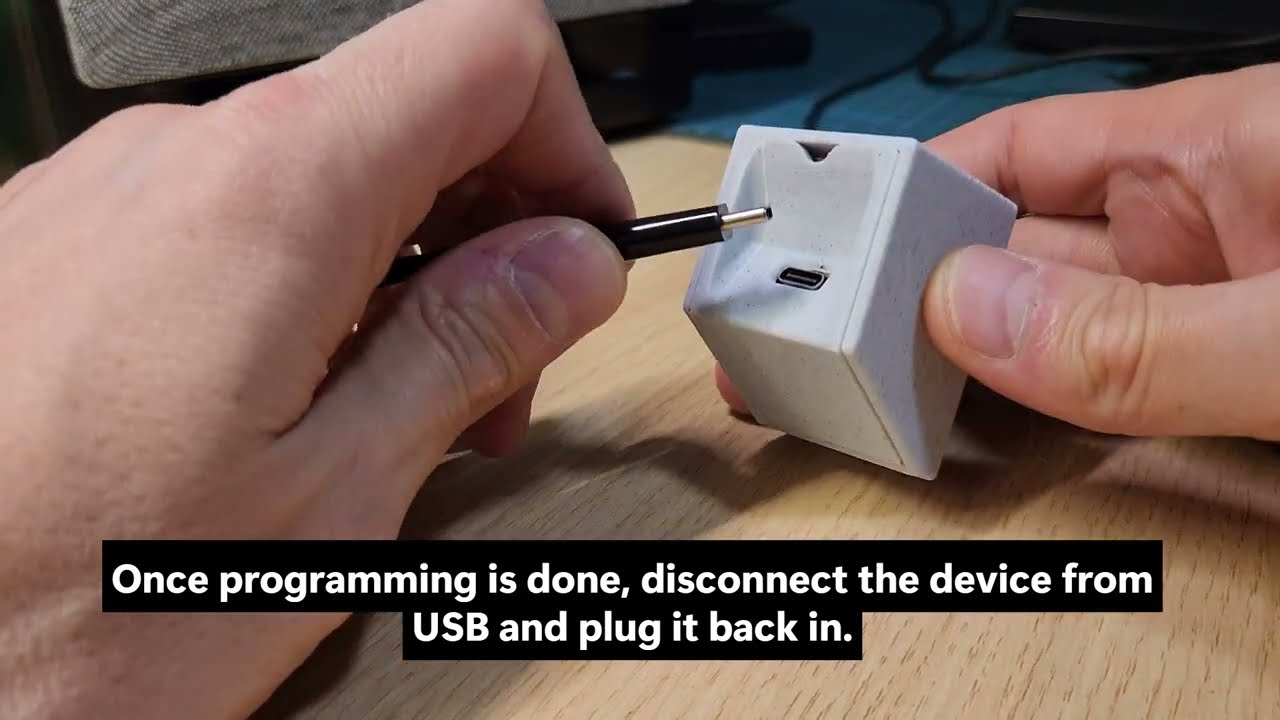
- Download the latest firmware from Releases. If you are flashing a new device for the first time, use the file ending with -Full (e.g.
BambuHelper-WebFlasher-v2.5-Full.bin). The regular (non-Full) file is for OTA updates on devices that already have BambuHelper installed. - Open ESP Web Flasher in Chrome or Edge
- If you are flashing a CYD, set Baudrate to 115200 before clicking Connect. Two or more attempts may be needed - the first one will fail. This applies to CYD only.
- Connect your ESP32 via USB
- Click Connect and select your device
- Set flash address to 0x0
- Select the downloaded
.binfile - Click Program
-
Flash the firmware (see above)
-
Connect to the
BambuHelper-XXXXWiFi network (password:bambu1234) -
Open
192.168.4.1in your browser -
Enter your home WiFi credentials and Save - the device restarts and connects to your WiFi
-
Note the IP address shown on the ESP32 display after it connects to WiFi
-
Open that IP address in your browser to access the full web interface
-
Configure your printer:
LAN Direct (P1P, P1S, X1, X1C, X1E, A1, A1 Mini):
- Printer IP address (found in printer Settings > Network)
- Serial number (see note below)
- LAN access code (8 characters, from printer Settings > Network)
Bambu Cloud (All printers):
- Get your Bambu Cloud access token from your browser (see Getting a Cloud Token below)
- Paste the token into the web interface
- Enter your printer's serial number (see note below)
Important: Serial number is NOT the printer name. The serial number is a 15-character code (for example
01P00A000000000) found on the printer LCD under Settings > Device > Serial Number, or on the physical label on the back or bottom of the printer. Do not confuse it with the printer name shown in Bambu Studio (for example3DP-01P-110), which is a shortened version and will not work. -
Save Printer Settings - the device connects to your printer
To use cloud mode, you need an access token from your Bambu Lab account. There are two ways to get it:
Using browser DevTools (Chrome / Edge):
- Open https://bambulab.com and log in to your account
- Press F12 to open DevTools
- Go to the Application tab (click
>>if you do not see it) - In the left sidebar, expand Cookies -> click
https://bambulab.com - Find the row named
tokenin the cookie list - Double-click the Value cell to select it, then Ctrl+C to copy
- Paste the value into BambuHelper's "Access Token" field in the web interface
Using browser DevTools (Firefox):
- Open https://bambulab.com and log in to your account
- Press F12 to open DevTools
- Go to the Storage tab
- In the left sidebar, expand Cookies -> click
https://bambulab.com - Find the row named
token - Double-click the Value cell to select it, then Ctrl+C to copy
- Paste the value into BambuHelper's "Access Token" field
Using browser DevTools (Safari):
- Open https://bambulab.com and log in to your account
- Open Develop -> Show Web Inspector (enable the Develop menu first in Safari Preferences -> Advanced)
- Go to the Storage tab -> Cookies ->
bambulab.com - Find and copy the
tokenvalue - Paste it into BambuHelper's "Access Token" field
Using the Python helper script (recommended):
pip install curl_cffi
python tools/get_token.py
The script will prompt for your email, password, and 2FA code, then print the token. Copy and paste it into BambuHelper's web interface.
Note: The token is valid for approximately 3 months. When it expires, the ESP32 will fail to connect - simply repeat the process above to get a fresh token and paste it in the web interface. Make sure to select the correct Server Region (US/EU/CN) to match your Bambu account's region.
The built-in web interface (accessible at the device's IP address) provides the following settings:
- SSID - your home WiFi network name
- Password - WiFi password
- IP Assignment - choose between DHCP (automatic) or Static IP
- Static IP fields (when static is selected):
- IP Address
- Gateway
- Subnet Mask
- DNS Server
- Show IP at startup - display the assigned IP on screen for 3 seconds after WiFi connects (on by default)
- Connection Mode - LAN Direct or Bambu Cloud (All printers)
- LAN mode fields:
- Printer Name, Printer IP Address, Serial Number, LAN Access Code
- Cloud mode fields:
- Server Region (US/EU/CN), Access Token, Printer Serial Number, Printer Name
- Live Stats - real-time nozzle/bed temp, progress, fan speed, and connection status
- Brightness - backlight level (10-255)
- Screen Rotation - 0, 90, 180, 270 degrees
- Display off after print complete - minutes to show the finish screen before turning off the display (0 = never turn off, default: 3 minutes)
- Keep display always on - override the timeout and never turn off
- Show clock after print - display a digital clock with date instead of turning off the screen (enabled by default)
- Theme presets - Default, Mono Green, Neon, Warm, Ocean
- Background color - display background
- Track color - inactive arc background
- Per-gauge colors (arc, label, value) for:
- Progress
- Nozzle temperature
- Bed temperature
- Part fan
- Aux fan
- Chamber fan
- Buzzer (optional) - enable or disable passive buzzer notifications
- GPIO Pin - choose which ESP32 pin drives the buzzer
- Quiet Hours - disable buzzer sounds during selected hours
- Test Buttons - quickly test available buzzer sounds from the web interface
- Factory Reset - erases all settings and restarts
- OTA Update - update firmware directly from the web interface
| Screen | When |
|---|---|
| Splash | Boot (2 seconds) |
| AP Mode | First boot / no WiFi configured |
| Connecting WiFi | Attempting WiFi connection |
| WiFi Connected | Shows IP for 3 seconds (if enabled) |
| Connecting Printer | WiFi connected, waiting for MQTT |
| Idle | Connected, printer not printing |
| Printing | Active print with full dashboard |
| Finished | Print complete with animation (auto-off after timeout) |
| Clock | After finish timeout (if enabled) - shows digital clock with date |
| Display Off | After finish timeout (if clock disabled) or printer powered off |
- After a print completes, the finish screen is shown for a configurable duration (default: 3 minutes), then either a digital clock is displayed or the screen turns off (configurable).
- When the printer is powered off or disconnected, the display stays in its current state (clock or off).
- When the printer comes back online or starts a new print, the display automatically wakes up.
- The "Keep display always on" option overrides the auto-off behavior.
- The "Show clock after print" option (enabled by default) shows time and date instead of turning off the display.
include/
  config.h              Pin definitions, colors, constants
  bambu_state.h         Data structures (BambuState, PrinterConfig, ConnMode)
src/
  main.cpp              Setup/loop orchestrator
  settings.cpp          NVS persistence (WiFi, network, printer, display, power, cloud token)
  wifi_manager.cpp      WiFi STA + AP fallback, static IP support
  web_server.cpp        Config portal (HTML embedded, token management)
  bambu_mqtt.cpp        MQTT over TLS, delta merge (local + cloud broker)
  bambu_cloud.cpp       Bambu Cloud helpers (region URLs, JWT userId extraction)
  button.cpp            Physical button / touch sensor input
  buzzer.cpp            Optional passive buzzer support
  display_ui.cpp        Screen state machine
  display_gauges.cpp    Arc gauges, progress bar, temp gauges
  display_anim.cpp      Animations (spinner, pulse, dots)
  clock_mode.cpp        Digital clock display (after print finishes)
  icons.h               16x16 pixel-art icons
tools/
  get_token.py          Python helper to get Bambu Cloud token on PC
- PlatformIO (VS Code extension or CLI)
- LAN mode: Bambu Lab printer with LAN mode enabled, printer and ESP32 on the same local network
- Cloud mode: Bambu Lab account, ESP32 with internet access
BambuHelper supports monitoring up to 2 printers simultaneously via dual MQTT connections.
CYD and ESP32-C3 boards are limited to 1 printer. Each MQTT connection requires ~85 KB of RAM (TLS session + message buffer), and the classic ESP32 / C3 do not have enough free heap for two simultaneous connections. The web interface on these boards hides the second printer tab and shows a notice. Use an ESP32-S3 board if you need two printers.
| Mode | Behavior |
|---|---|
| Smart (default) | Shows the printing printer. If both are printing, cycles between them. If neither is printing, shows last active. |
| Auto-rotate | Cycles through all connected printers at a configurable interval (10s - 10min). |
| Off | Manually switch between printers using the physical button only. |
An optional physical button can be connected to cycle between printers and wake the display from sleep.
| Type | Wiring | How it works |
|---|---|---|
| Push button | One pin to configured GPIO, other pin to GND | Active LOW with internal pull-up |
| TTP223 touch sensor | VCC->3.3V, GND->GND, SIG->configured GPIO | Active HIGH |
The button type and GPIO pin are configurable in the web interface (Multi-Printer section) - no recompilation needed.
When a printer is physically powered off, BambuHelper uses exponential backoff to avoid wasting resources on repeated connection attempts:
| Phase | Attempts | Interval |
|---|---|---|
| Normal | First 5 | Every 10 seconds |
| Phase 2 | Next 10 | Every 60 seconds |
| Phase 3 | Beyond 15 | Every 120 seconds |
When the printer comes back online, the backoff resets to normal immediately.
| BambuHelper can display live power consumption from a Tasmota-flashed smart plug connected to your printer. Tasmota is open-source firmware for ESP-based smart plugs that exposes a local HTTP API and MQTT - no cloud required. What it shows: - Live wattage in the bottom status bar on the idle and printing screens - Total kWh used during the print job, shown on the "Print Complete" screen Setup: open the web interface, go to Power Monitoring, enter the plug's local IP address, set your preferred poll interval (10-30s), and choose whether to alternate the watts display with the layer counter or always show watts. Requirements: any Tasmota-flashed smart plug with energy monitoring (e.g. Sonoff S31, BlitzWolf BW-SHP6, Nous A1). The plug must be on your local network and reachable from the ESP32. No Tasmota MQTT broker needed - BambuHelper polls the HTTP API directly. This is initial/beta support. Future plans include automatic printer power-off based on nozzle temperature and idle time. |
SPI display cables near the ESP32 antenna can cause WiFi interference. The ESP32-S3 Super Mini has a PCB antenna at one end of the board. If the SPI wires to the display run close to or over this antenna area, RF interference can prevent WiFi from connecting or cause frequent disconnections.
Fix: Route the display cables away from the antenna end of the ESP32-S3. Even 1-2 cm of separation can make a significant difference. If using a breadboard, ensure the wires do not loop back over the ESP32 module.
Symptoms:
- "Connecting to WiFi" screen appears briefly, then falls back to AP mode
- WiFi connects sometimes but drops after a few seconds
- Works fine when display is disconnected
If WiFi issues persist Perform an antenna mod by soldering two individual goldpins to the antenna pads, as shown in the picture.
- LAN Direct: Make sure the printer and ESP32 are on the same network. Check that LAN mode is enabled on the printer and the access code is correct.
- Bambu Cloud: Verify the access token has not expired (about 3 months validity). Re-extract it from your browser and paste it again. Check the server region matches your Bambu account.
- If a printer is physically powered off, reconnect attempts will gradually slow down (backoff). It will reconnect automatically when the printer comes back online.
- Check rotation mode in the web interface (Multi-Printer section). Smart mode only switches automatically when a printer is actively printing.
- Press the physical button (if configured) to manually cycle between printers.
- Multi-language support
MIT