Workspace
Stay organized with collections
Save and categorize content based on your preferences.
Sofia Emelianova
Settings > Workspace lets you save changes that you make within DevTools to source code that's stored on your computer.
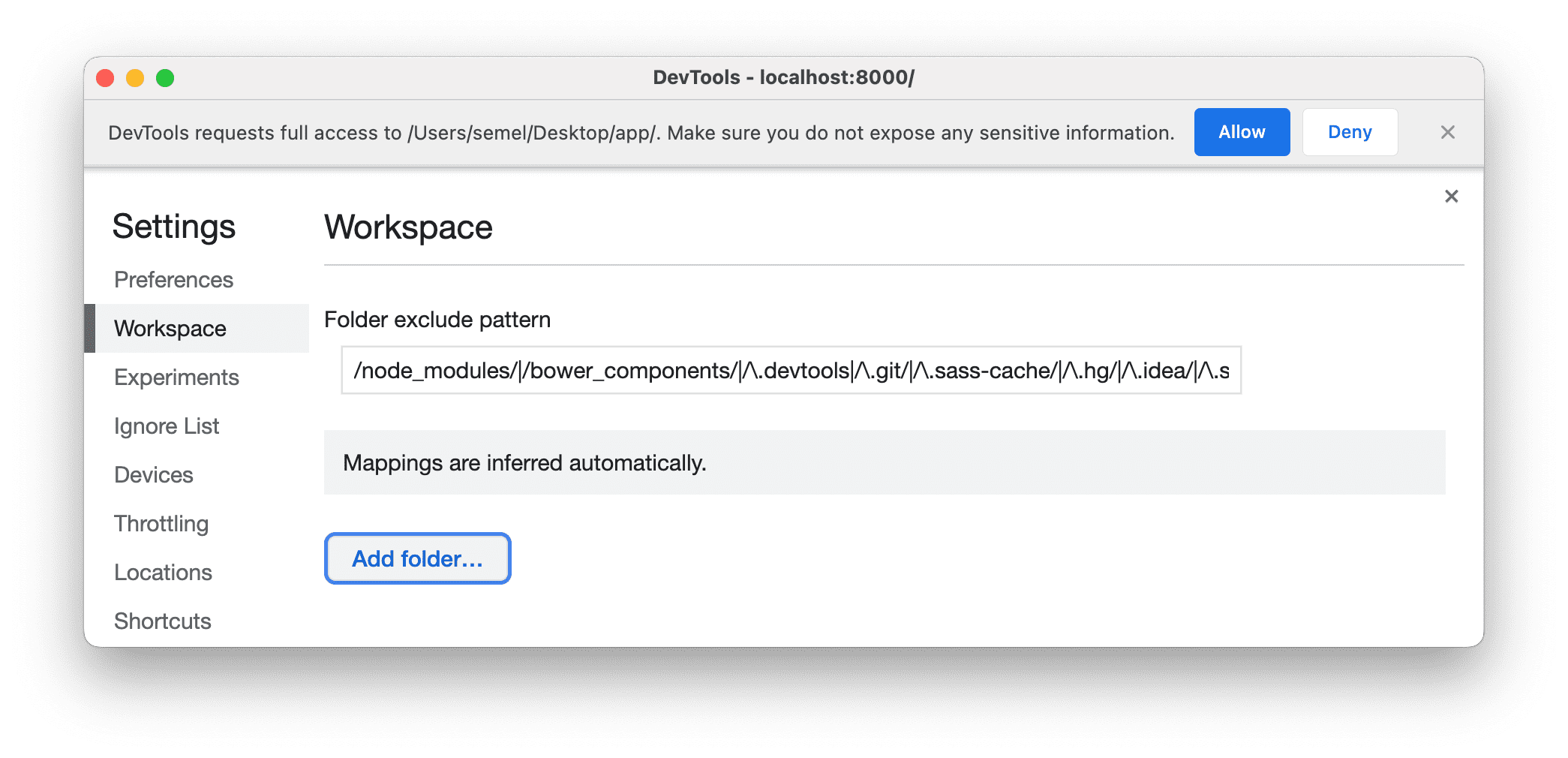
To configure your workspaces, open Settings > Workspace.
Customize exclusions
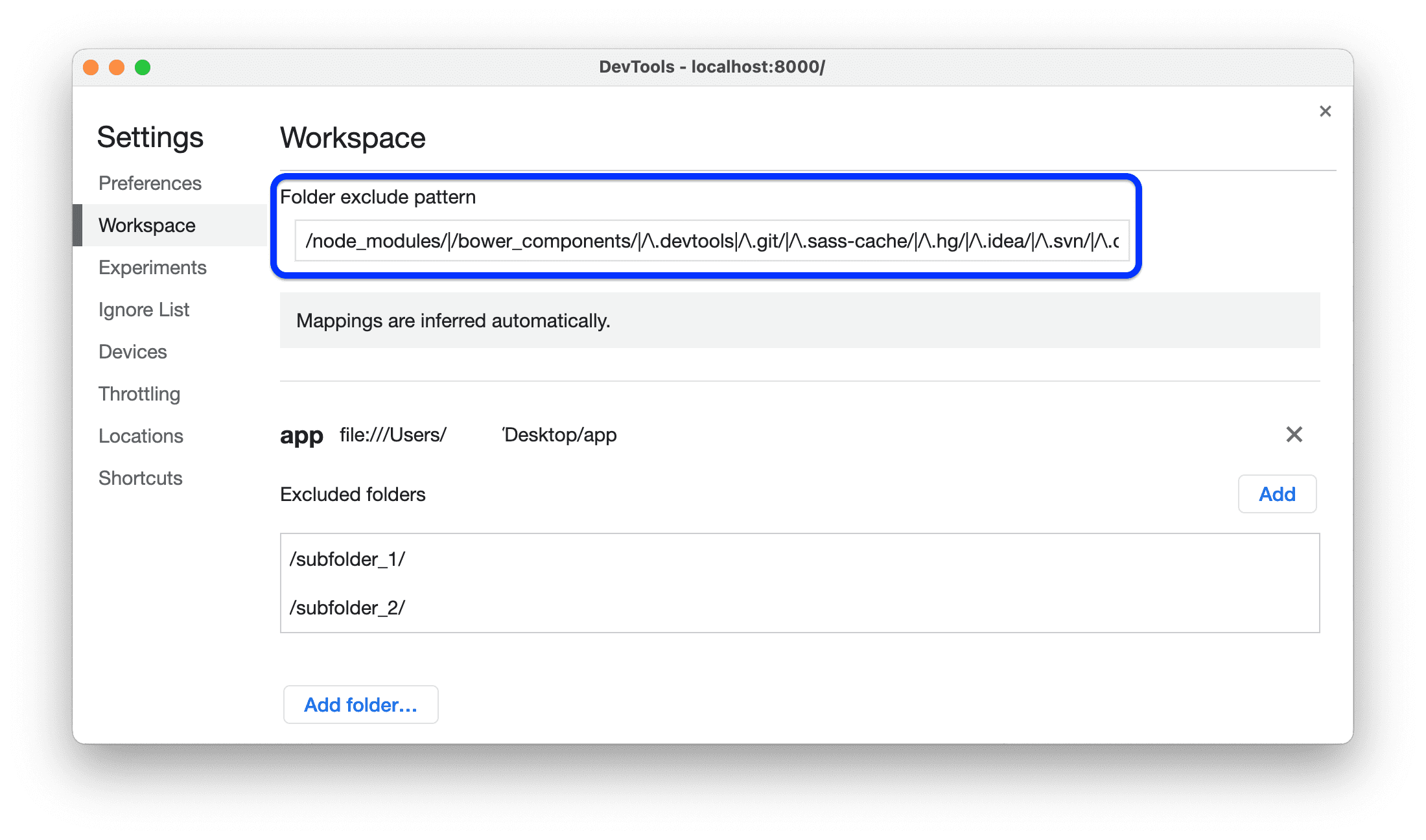
The Folder exclude pattern is the default global RegEx pattern that lists common and third-party folders and file types that DevTools excludes from workspaces so you can focus only on your code.
You can manually add new folders or file types to the pattern. Pattern changes take effect after reloading DevTools.
To change the default global list of excluded folders and files, edit the Settings > Workspace > Folder exclude pattern textbox.
Manage Workspaces
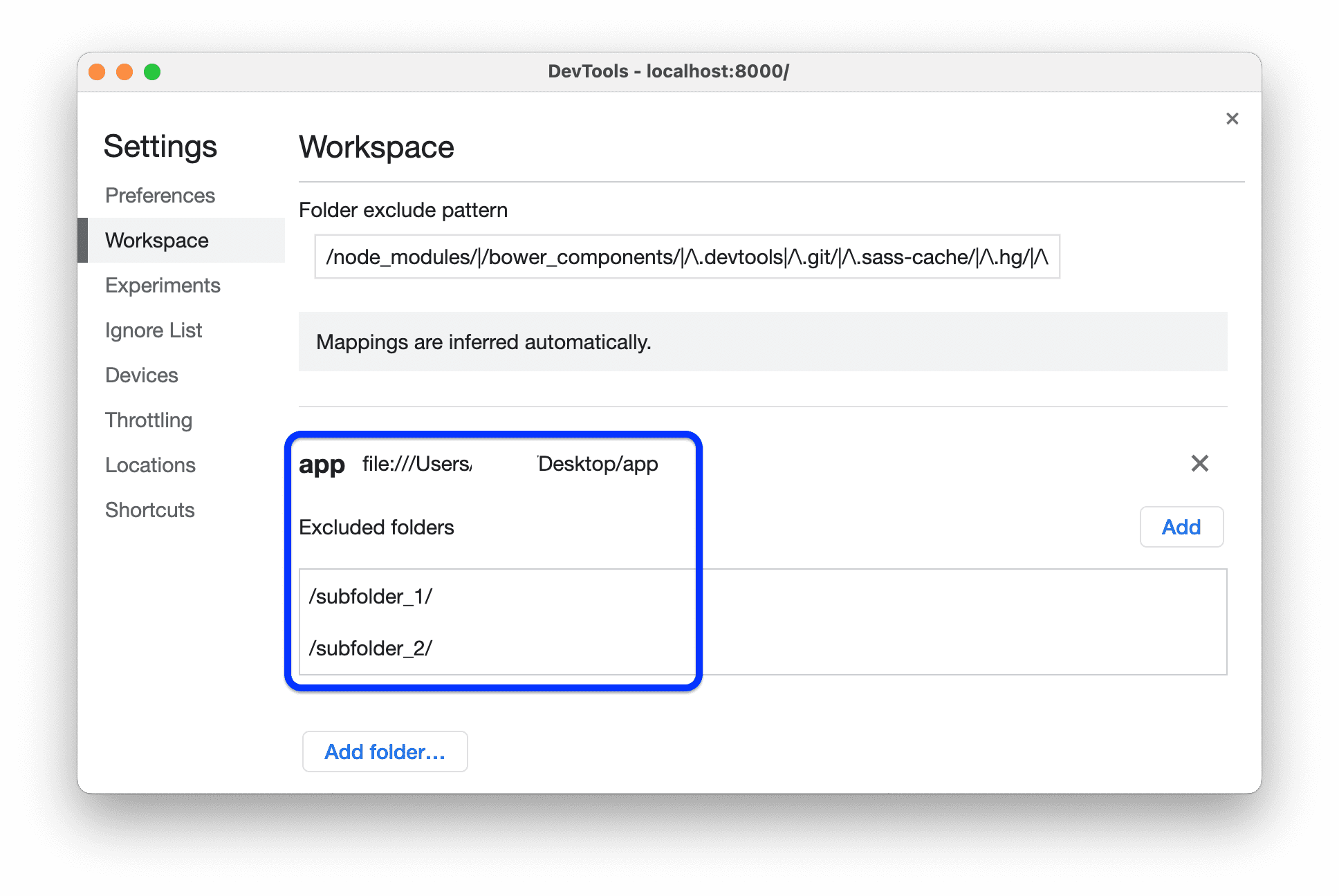
The Workspace tab lists folders you have set up as Workspaces and, for each folder, subfolders you manually excluded.
Changes to files in subfolders listed as excluded don't persist. Excluded subfolders are workplace-specific, not global.
[[["Easy to understand","easyToUnderstand","thumb-up"],["Solved my problem","solvedMyProblem","thumb-up"],["Other","otherUp","thumb-up"]],[["Missing the information I need","missingTheInformationINeed","thumb-down"],["Too complicated / too many steps","tooComplicatedTooManySteps","thumb-down"],["Out of date","outOfDate","thumb-down"],["Samples / code issue","samplesCodeIssue","thumb-down"],["Other","otherDown","thumb-down"]],["Last updated 2023-02-16 UTC."],[],[]]