
Skip to content
ONLINE 101010 TECH 010101 TIPS
  • News
  • How-To
  • Social
  • Streaming
  • Gaming
  • Reviews
  • News
  • How-To
  • Social
  • Streaming
  • Gaming
  • Reviews
  1. Home/
  2. Social Media/
  3. How to Pin Someone on Snapchat

How to Pin Someone on Snapchat

Sodiq Olanrewaju
October 2, 2022
4 min read
 - preview-media-pin-someone-snapchat-conversation

Do you often find it challenging to locate conversations with your close friends or favorite people on Snapchat? Use Snapchat’s “Pin” feature to affix individual or group conversations to the top of the chat screen. Pinning people on Snapchat lowers the chances of missing important messages or snaps.

This tutorial will show you how to pin conversations and group chats on Snapchat. Additionally, you’ll learn how to unpin and manage pinned conversations in the Snapchat app.

How to Pin Someone on Snapchat

Pinning Snapchat conversations is only available to iOS users—the Snapchat app for Android devices lacks the “Pin Conversation” feature. That means you can only pin people on Snapchat if you have an iPhone.

Snapchat may roll out the feature to Android users sometime in the future. But for now, pinning Snapchat conversations is limited to iPhone users. If you have an iPhone, follow the steps below to pin conversations to your Snapchat chat feed.

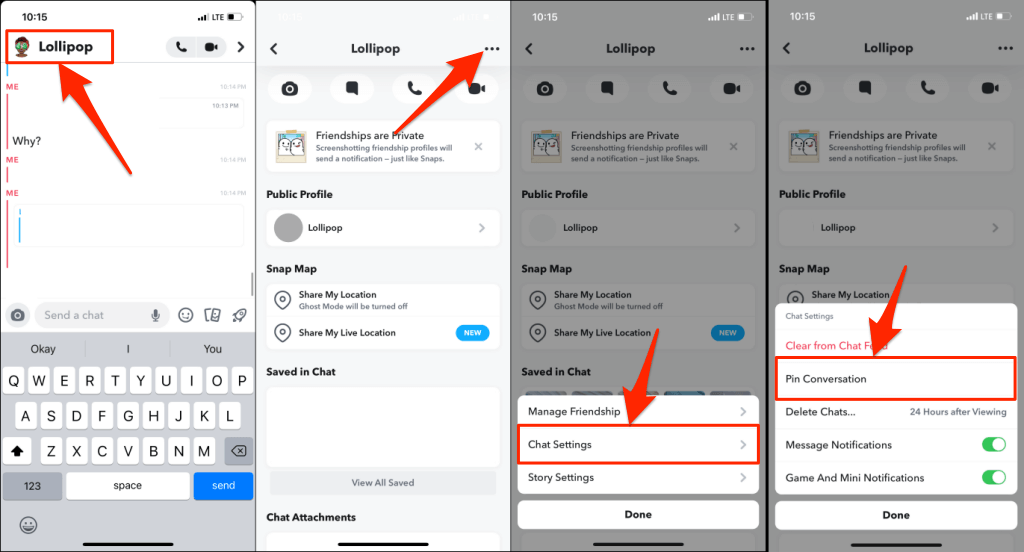
  1. Open Snapchat and swipe right on the camera screen to open the Chat or Friends screen.
  2. Select the conversation or group chat you want to pin.
  3. Tap your friend’s name or profile picture to open their profile.
  4. Tap the menu icon in the top-right corner of the profile page and tap Chat Settings.
  5. Select Pin Conversation on the pop-up menu.
 - how-to-pin-someone-on-snapchat-2-compressed - how-to-pin-someone-on-snapchat-2-compressed

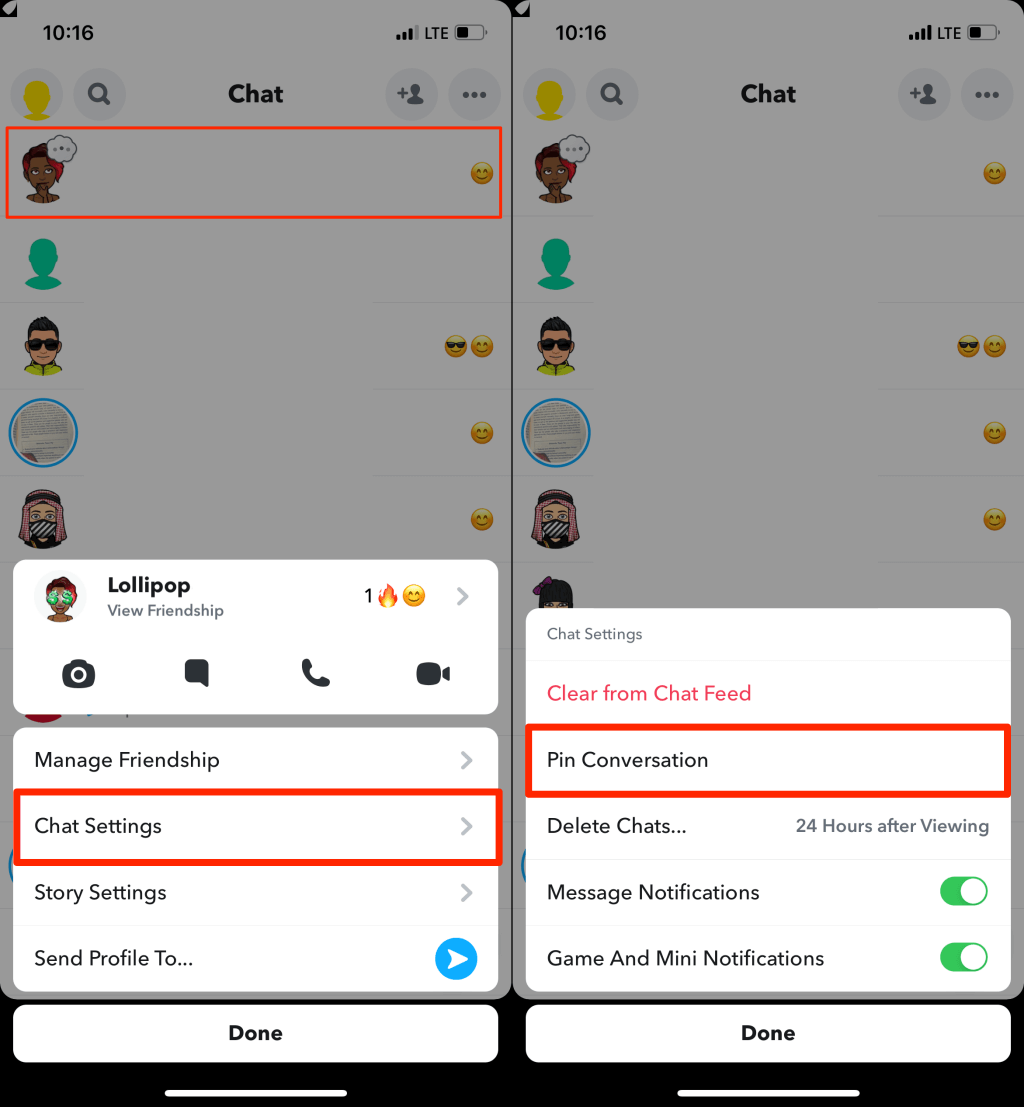
You can also access a conversation’s settings and pin a conversation directly from the Chat Screen. Tap and hold the chat you want to pin, select Chat Settings, and select Pin Conversation.
 - how-to-pin-someone-on-snapchat-3-compressed - how-to-pin-someone-on-snapchat-3-compressed

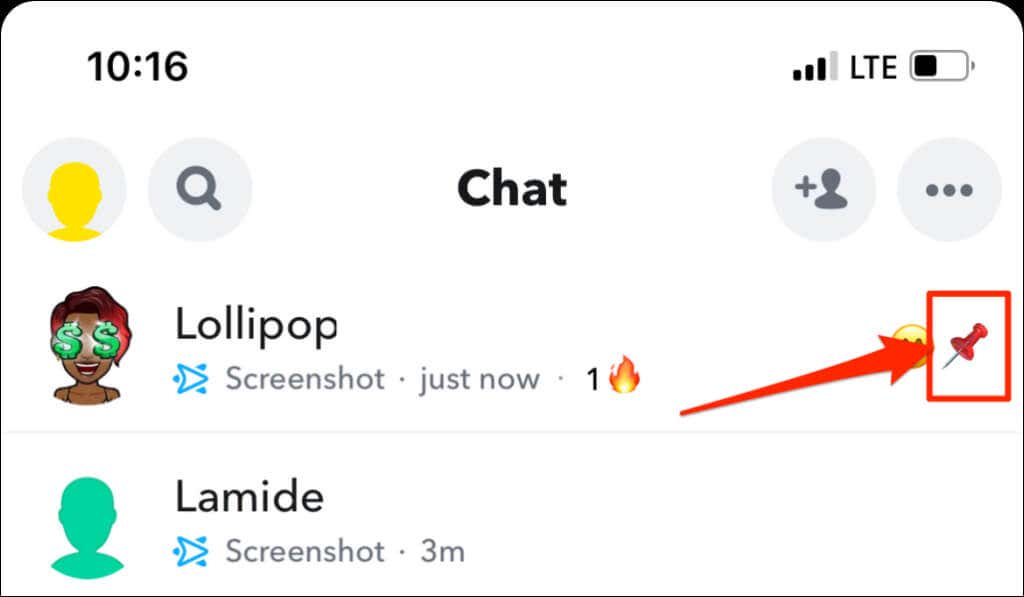
Return to the chat screen, and you’ll find the person or conversation pinned to the top of your feed. You should also see a thumbtack or pin icon next to the conversation.
 - how-to-pin-someone-on-snapchat-4-compressed - how-to-pin-someone-on-snapchat-4-compressed

Pinning conversations on Snapchat is a private action. Snapchat doesn’t send a notification to people or groups you pinned in the app.

Customize the Snapchat Pin Icon

Snapchat allows you to customize the icon or identifier for pinned conversations. If you dislike the default Thumbtack/Pin icon, you can switch to a different emoji anytime.

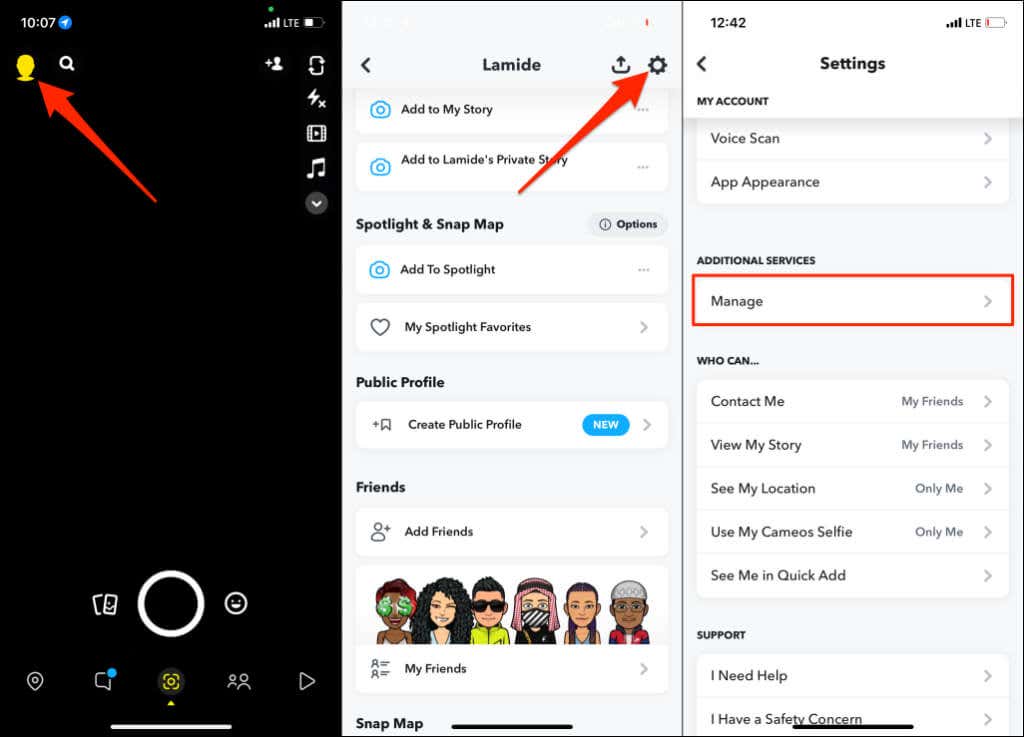
  1. Open your Snapchat profile and tap the gear icon in the top-right corner.
  2. Scroll to the “Additional Services” section and tap Manage.
 - how-to-pin-someone-on-snapchat-5-compressed - how-to-pin-someone-on-snapchat-5-compressed
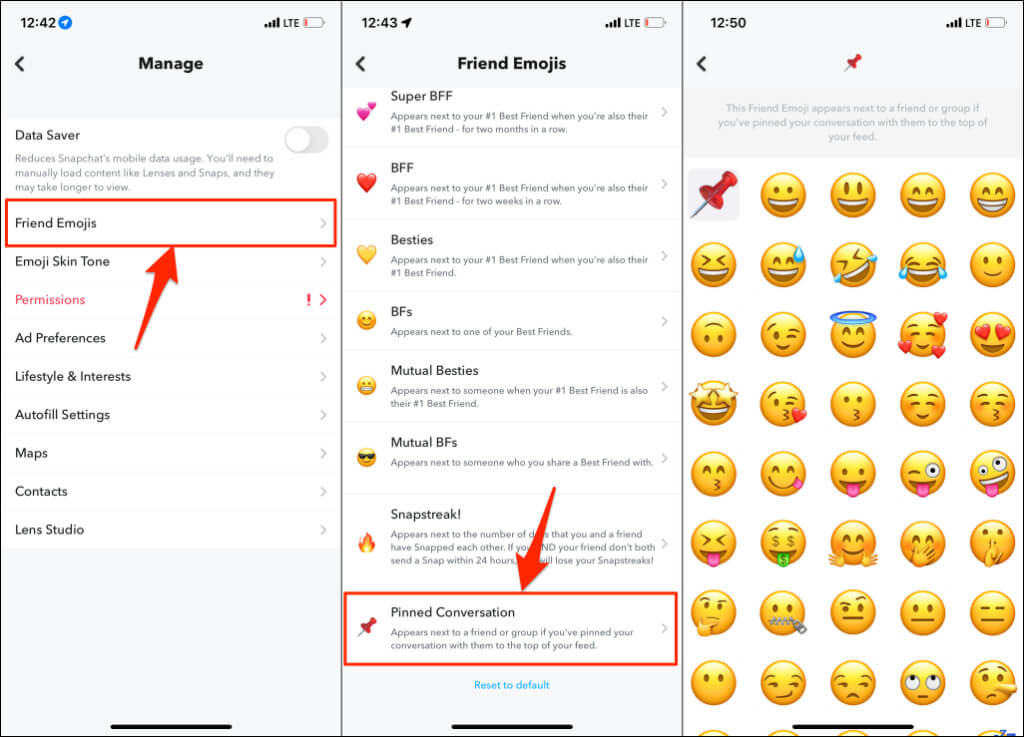
  1. Select Friend Emojis.
  2. Tap Pinned Conversation.
  3. Go through the list and select your preferred emoji.
 - how-to-pin-someone-on-snapchat-6-compressed - how-to-pin-someone-on-snapchat-6-compressed

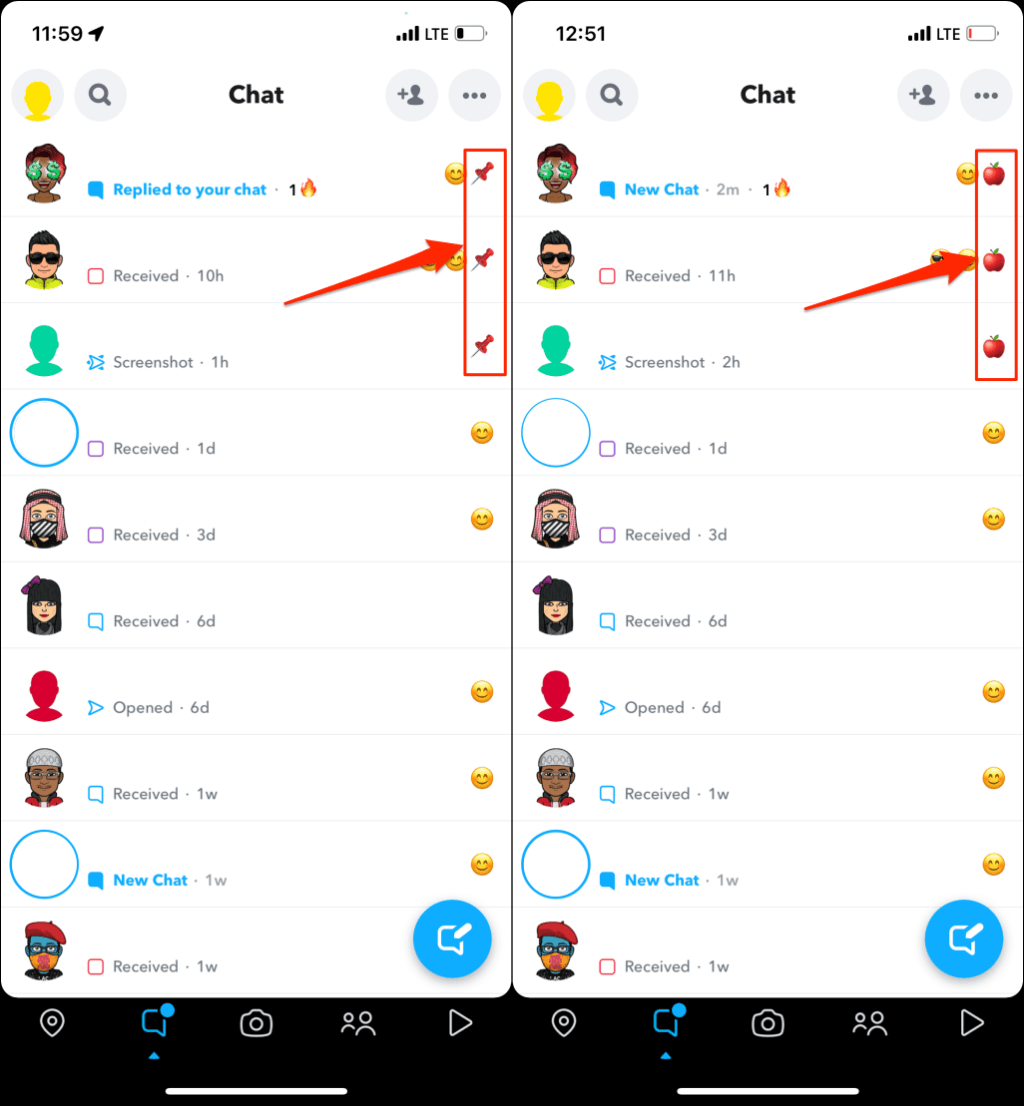
The newly selected emoji will appear next to all pinned conversations on the chat feed.
 - how-to-pin-someone-on-snapchat-7-compressed - how-to-pin-someone-on-snapchat-7-compressed

You can change emojis for pinned conversations as many times as you want. However, you cannot use different emojis for each pinned conversation. All pinned conversations will have the same emoji or identifier.

How Many People Can You Pin On Snapchat?

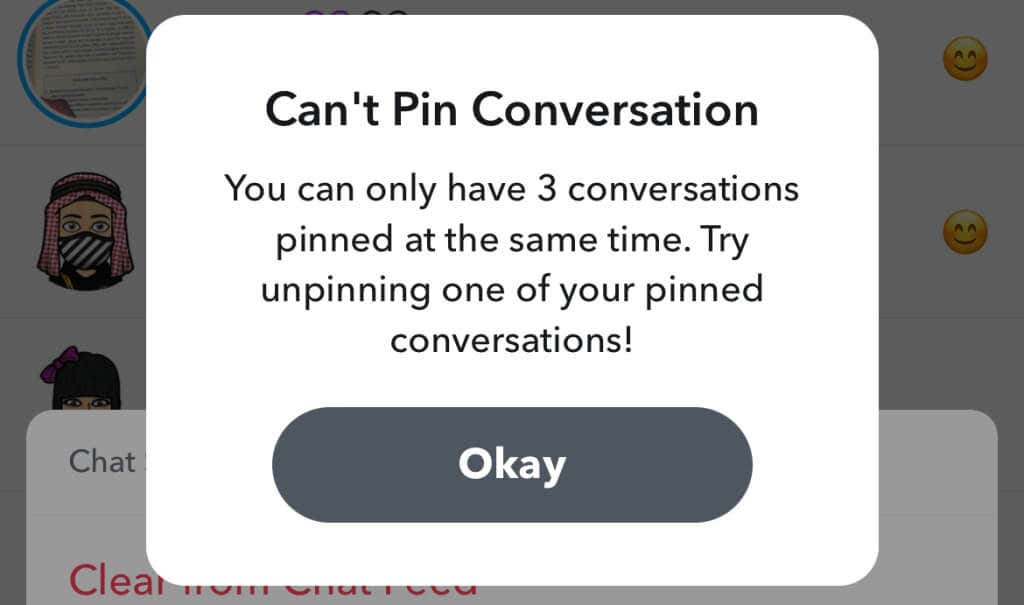
At the moment, Snapchat users can only pin three people or conversations to the top of the chat feed. When you hit the limit and try to pin a (fourth) conversation, Snapchat displays the “Can’t Pin Conversation” error message. Unpin one of your pinned chats and try pinning the person again.
 - how-to-pin-someone-on-snapchat-8-compressed - how-to-pin-someone-on-snapchat-8-compressed

How to Unpin Someone on Snapchat

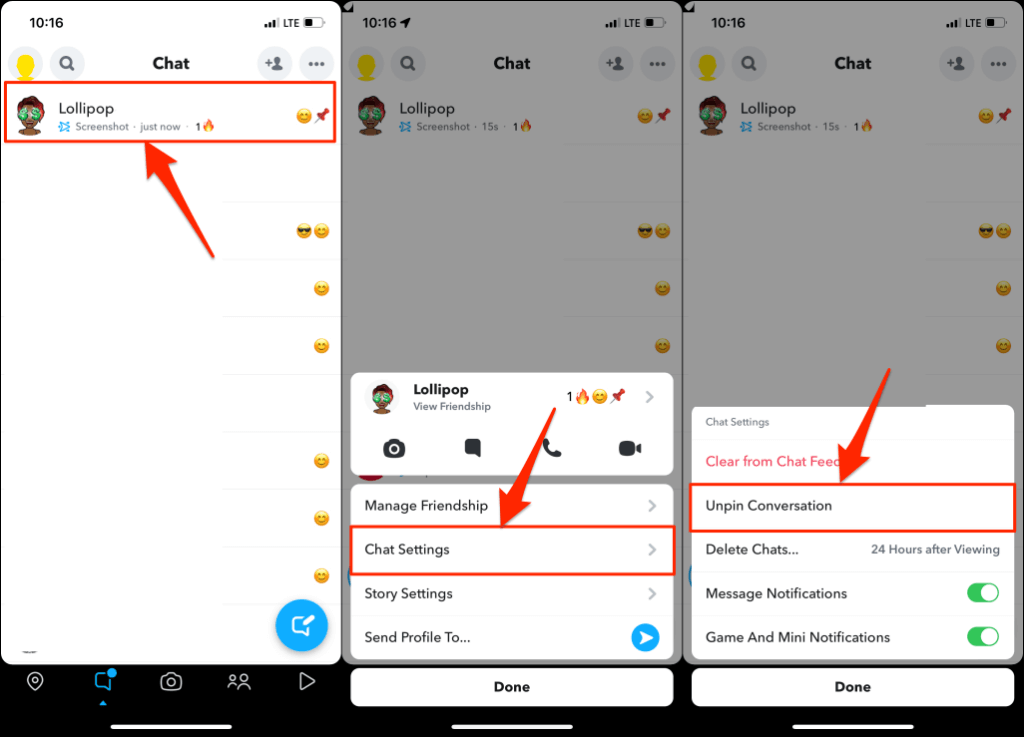
Unpinning a conversation from the top of the chat feed is easy. Tap and hold the pinned conversation, select Chat Settings, and tap Unpin Conversation.
 - how-to-pin-someone-on-snapchat-9-compressed - how-to-pin-someone-on-snapchat-9-compressed

Snapchat will unpin the person and move your conversation with them down the chat list.

Use the Pin

Pinning conversations is a common feature on many social media and instant messaging apps. WhatsApp, iMessage, Twitter, Telegram, and iMessage allow users to pin up to three, nine, six, and five chats, respectively. However, only Snapchat supports the customization of the thumbtack icon.

If you’re having issues pinning Snapchat conversations, close and reopen the app and try again. Updating Snapchat in the App Store can also fix bugs affecting the Pin feature.

Tags: Snapchat
Share
Written by

Sodiq Olanrewaju

Read expert articles by Solanrewaju on tech, software guides, and troubleshooting solutions to improve your digital experience. <a href='https://www.online-tech-tips.com/author/solanrewaju/'>Read Sodiq's Full Bio</a>

View Sodiq's Profile

Recent Posts

  • How to Remove Ads from Amazon Prime Video (Complete Guide 2026) - How to Remove Ads from Amazon Prime Video (Complete Guide 2026)How to Remove Ads from Amazon Prime Video (Complete Guide 2026) - How to Remove Ads from Amazon Prime Video (Complete Guide 2026)
    How to Remove Ads from Amazon Prime Video (Complete Guide 2026)Apr 1, 2026
  •  - featured - featured
    The 8 Best Free Anime Apps and Sites for iPhone and Android in 2026Mar 30, 2026
  • Gmail Not Loading in Chrome? Here's How to Fix It (2026) - Gmail Not Loading in Chrome? Here's How to Fix It (2026)Gmail Not Loading in Chrome? Here's How to Fix It (2026) - Gmail Not Loading in Chrome? Here's How to Fix It (2026)
    Gmail Not Loading in Chrome? Here’s How to Fix It (2026)Mar 28, 2026
  • How to Fix Chrome Extensions Not Working After Update: The Extension Emergency Kit - How to Fix Chrome Extensions Not Working After Update: The Extension Emergency KitHow to Fix Chrome Extensions Not Working After Update: The Extension Emergency Kit - How to Fix Chrome Extensions Not Working After Update: The Extension Emergency Kit
    How to Fix Chrome Extensions Not Working After Update: The Extension Emergency KitMar 27, 2026

Search

Categories

  • Gaming (346)
  • How-To (1,119)
  • News (44)
  • Reviews (438)
  • Social Media (462)
  • Streaming (174)
  • Uncategorized (4)

Popular Tags

Adobe AI Alexa Amazon Android Buying Guides ChatGPT Chrome Discord Explainers Facebook FireTV Gadget Reviews Gmail Google Google Docs Google Maps Google Sheets Home Networking Hulu Instagram Internet LinkedIn Minecraft Netflix Nintendo Switch PlayStation Premiere Reddit Remote Work Roblox Roku Roundups Smart Home Snapchat Software Reviews Spotify Steam TikTok Twitch VR WhatsApp Windows X (Twitter) YouTube

Our Publishing Family

Online Tech Tips is part of the AK Internet Consulting publishing family.

  • HELP DESK GEEK
  • THE BACK ROOM TECH
  • SWITCHING TO MAC
  • XBOX ADVISOR

Daily Email Newsletter

Connect With Us

About Online Tech Tips

Online Tech Tips has published easy-to-follow technology tutorials, honest reviews, and practical how-to guides since 2007 — helping millions of readers solve tech problems and get more from their devices.

Learn More →

© 2007-2026 Online Tech Tips.com, LLC.
All Rights Reserved.

  • Home
  • About Us
  • Editorial Standards
  • Contact Us
  • Terms of Use
  • Privacy Policy
Online