

Your smartphone probably knows more about you than your best friend does. Bank accounts, private messages, photos, location history, work emails: it’s all there in your pocket. Yet most people still treat phone security like an afterthought, maybe slapping on a basic passcode and calling it good.
Here’s the thing: smartphone security has completely evolved since the early days of “just don’t download sketchy apps.” We’re now dealing with AI-generated phishing scams that can fool anyone, SIM card swaps that bypass traditional security, and attacks that exploit human psychology rather than just software vulnerabilities. The good news? Modern phones have some seriously clever protection built in, you just need to know how to use it.
What Makes Smartphone Security Different in 2026?
Today’s security threats aren’t just about malware anymore. The biggest risks come from social engineering, which is basically hackers tricking you into giving them access rather than breaking in through technical means.
Key changes since the early smartphone days:
- AI-powered scams: Phishing messages and calls that are indistinguishable from legitimate communication
- SIM card swaps: Hackers convincing your carrier to transfer your number to their device
- Behavioral attacks: Exploiting predictable human responses during high-stress situations
- Password obsolescence: Traditional passwords and SMS codes are now considered insufficient protection
The solution isn’t just stronger passwords, it’s smarter security that works automatically without making your life miserable.
1. Set Up Multi-Layered Authentication (Beyond Basic Passcodes)
Start with biometric locks: Use your fingerprint, face, or voice to unlock your phone. This isn’t just for convenience, it’s actually more secure than a PIN someone could shoulder-surf.
Enable Identity Check: On newer Android phones, this feature requires biometric authentication for sensitive actions even if someone knows your PIN. So if a thief watches you enter your passcode, they still can’t change your Google password or disable security features.
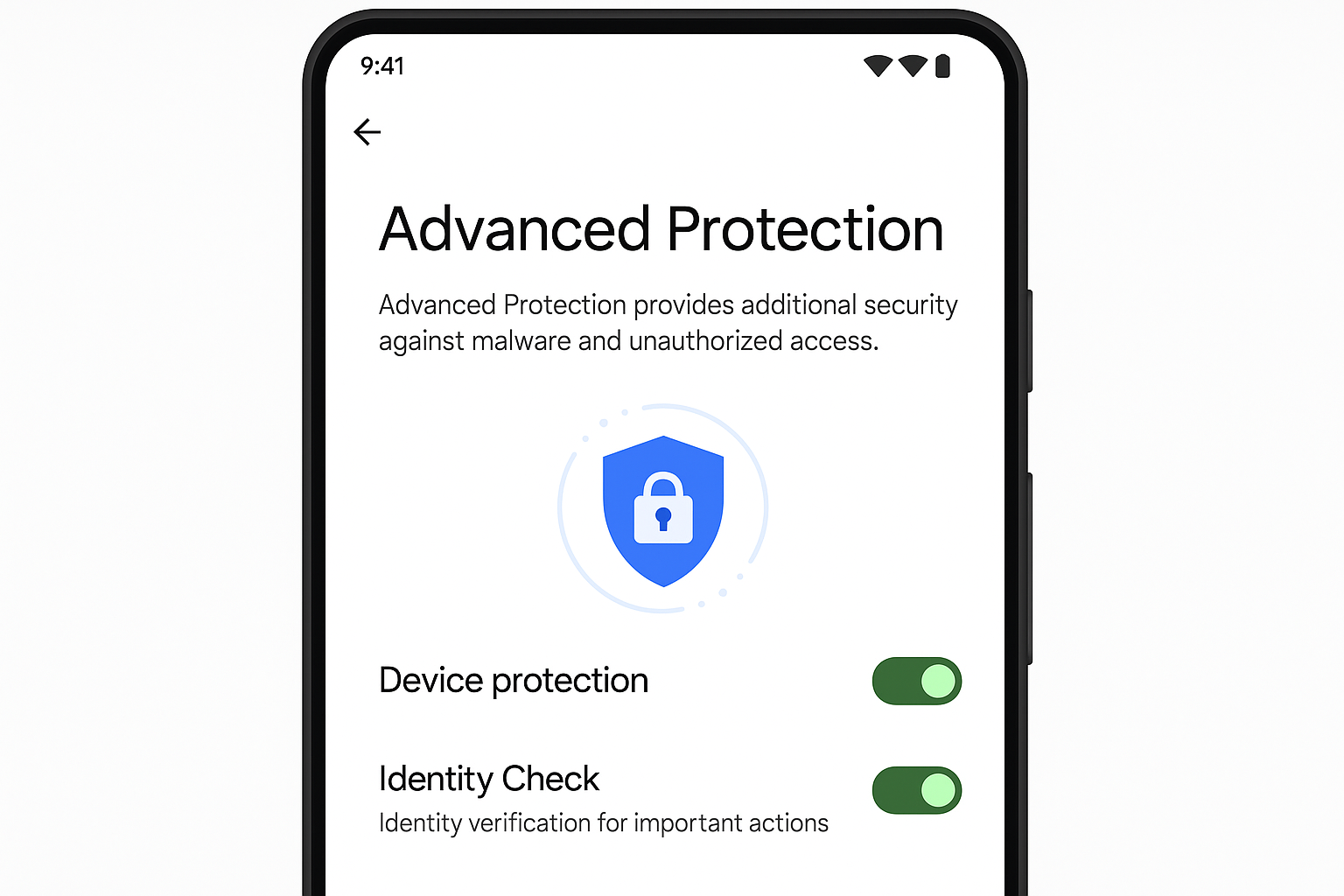
Add app-specific locks: Banking apps, password managers, and messaging apps often have their own biometric locks. Turn these on as they’re your second line of defense if someone gets past your lock screen.
2. Secure Your Cloud Accounts With Modern Authentication
Your Google or Apple account is basically the master key to your digital life. If someone gets in there, they can remotely wipe your devices, access your photos, read your messages, and see your location history.
Move beyond SMS-based two-factor authentication: Those text message codes can be intercepted through SIM swaps. Instead, use an authenticator app like Google Authenticator or Authy.
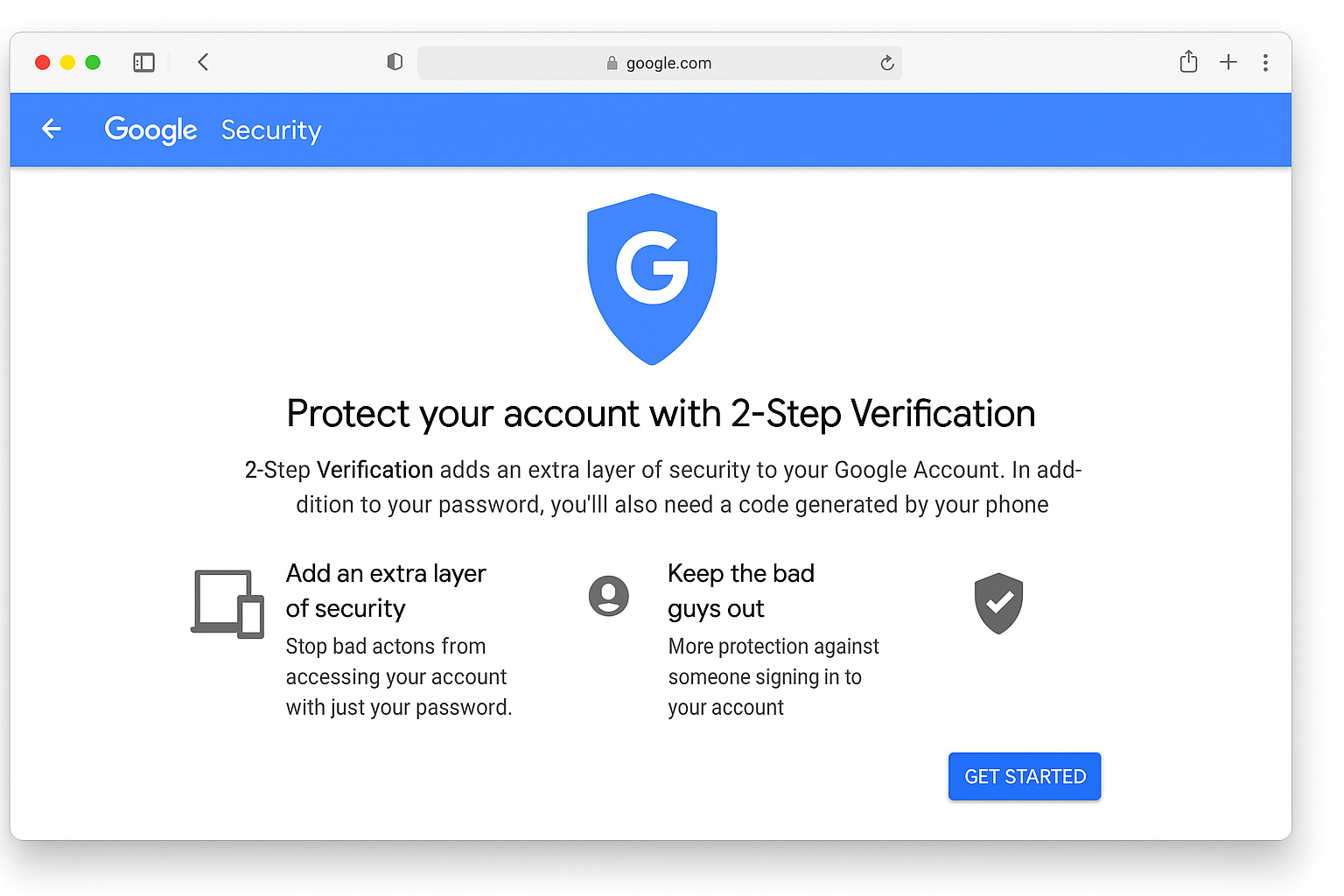
Set up passkeys where available: These are the modern replacement for passwords. Instead of typing something, your phone proves it’s you using biometrics and cryptography. It’s both more secure and easier to use.
Add a carrier PIN: Call your mobile provider (Verizon, AT&T, T-Mobile, etc.) and set up a PIN that’s required for any account changes. This prevents SIM swap attacks where hackers convince customer service to transfer your number.
3. Enable Advanced Protection Mode
Android 16 introduced something called Advanced Protection that hardens your device against sophisticated attacks. Think of it as putting your phone in “paranoid mode” – it blocks risky behaviors automatically.
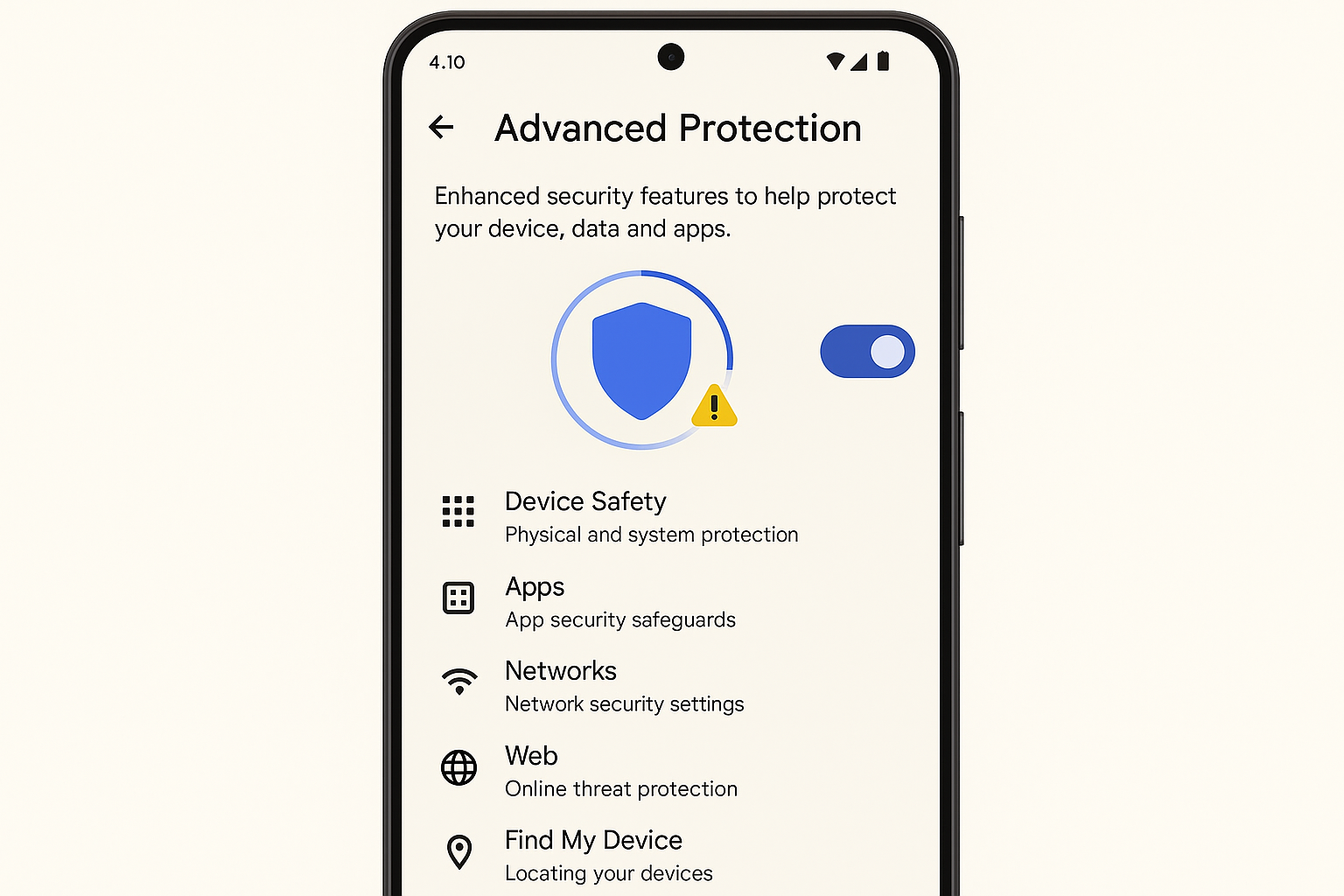
What it does:
- Prevents app sideloading (installing apps from outside the Play Store)
- Blocks connections to 2G networks (which are easily spoofed)
- Stops your phone from reconnecting to insecure Wi-Fi networks
- Requires extra verification for sensitive actions during suspicious calls
The trade-off is slightly less convenience, but if you’re handling sensitive information or have been targeted before, it’s worth it.
4. Be Smart About App Permissions (They’re Trickier Now)
Modern apps are sneaky about permissions. They’ll ask for reasonable-sounding access and then use it in ways you didn’t expect.
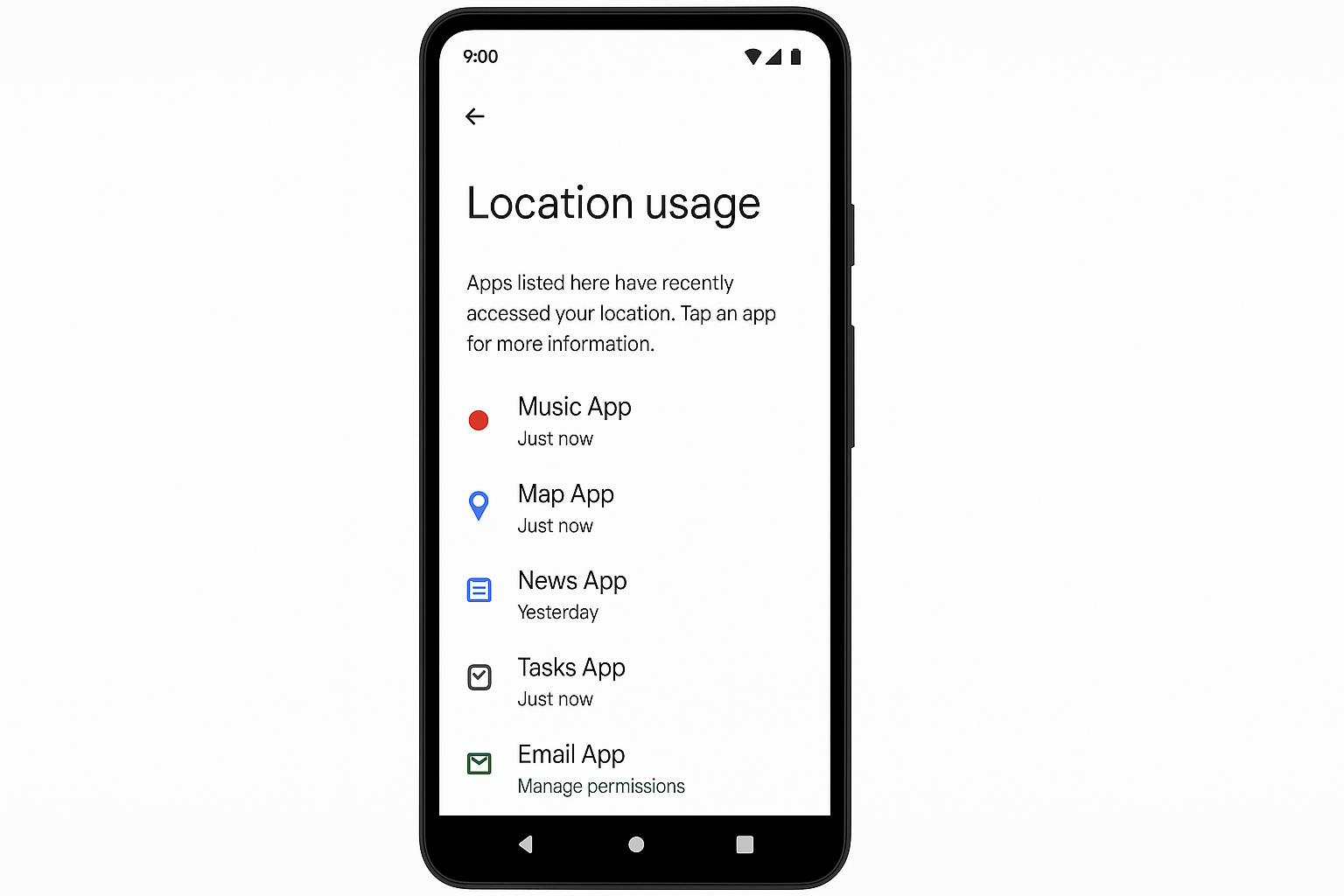
Red flags to watch for:
- Flashlight apps wanting contact access: Why would a flashlight need your phone book?
- Games requesting location “for better ads”: That’s usually not worth the privacy trade-off
- Any app asking for Accessibility permissions: This gives almost unlimited control over your device
Pro tip: Android’s new AI-powered scam detection will actually warn you if you’re about to grant dangerous permissions during a suspicious phone call. If you see that warning, hang up immediately.
5. Use Official Apps for Financial Stuff (But Verify They’re Real)
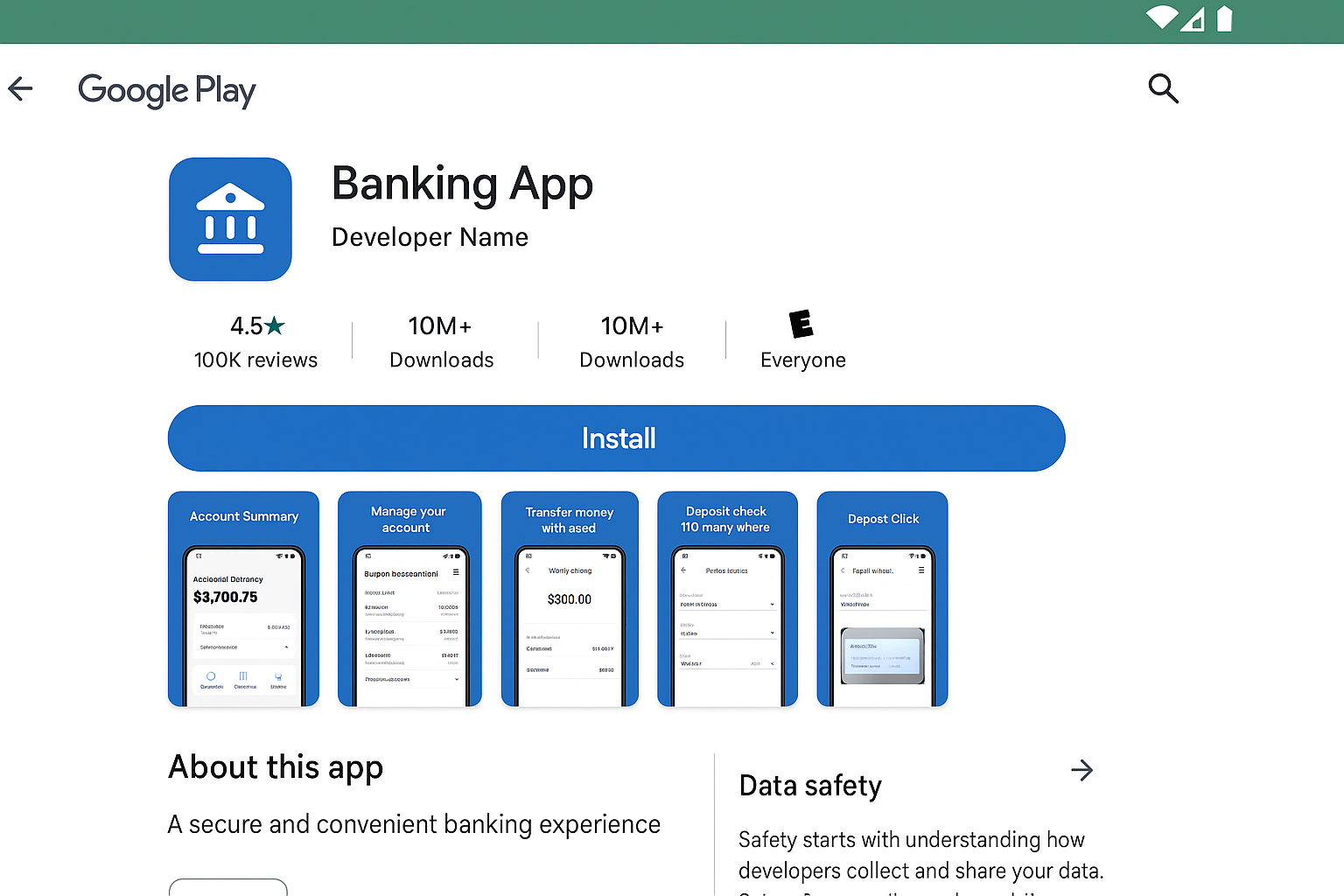
Banking through apps is generally safer than using mobile browsers, but fake banking apps are becoming more sophisticated. Scammers create convincing replicas and even buy ads to make them appear first in search results.
How to verify you’re downloading the real app:
- Go to your bank’s official website and click their app store links
- Check the developer name and make sure it matches the bank exactly
- Look at download numbers (real banking apps have millions of downloads)
- Read recent reviews for mentions of scams or fake versions
6. Set Up Automatic Backups and Remote Wipe
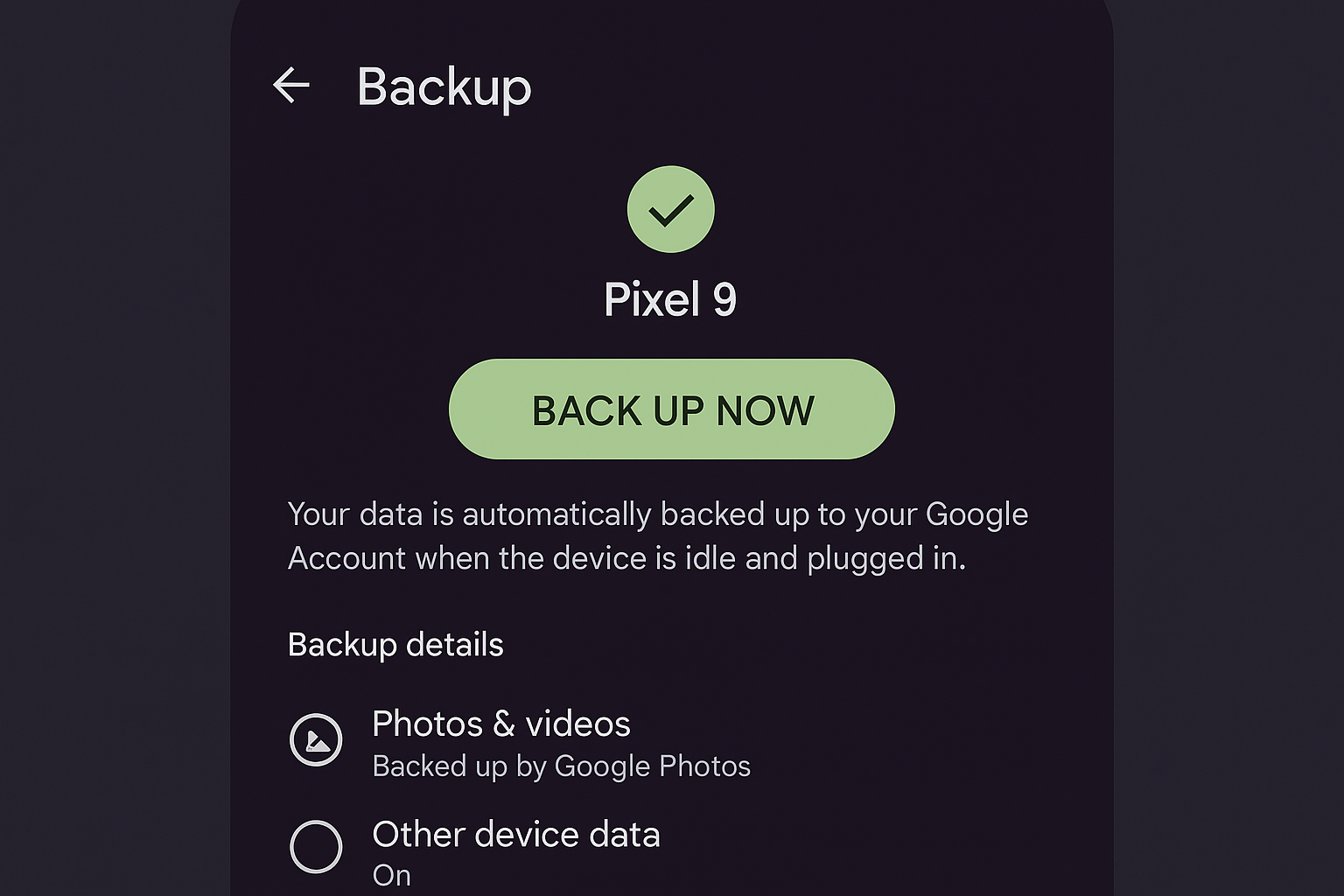
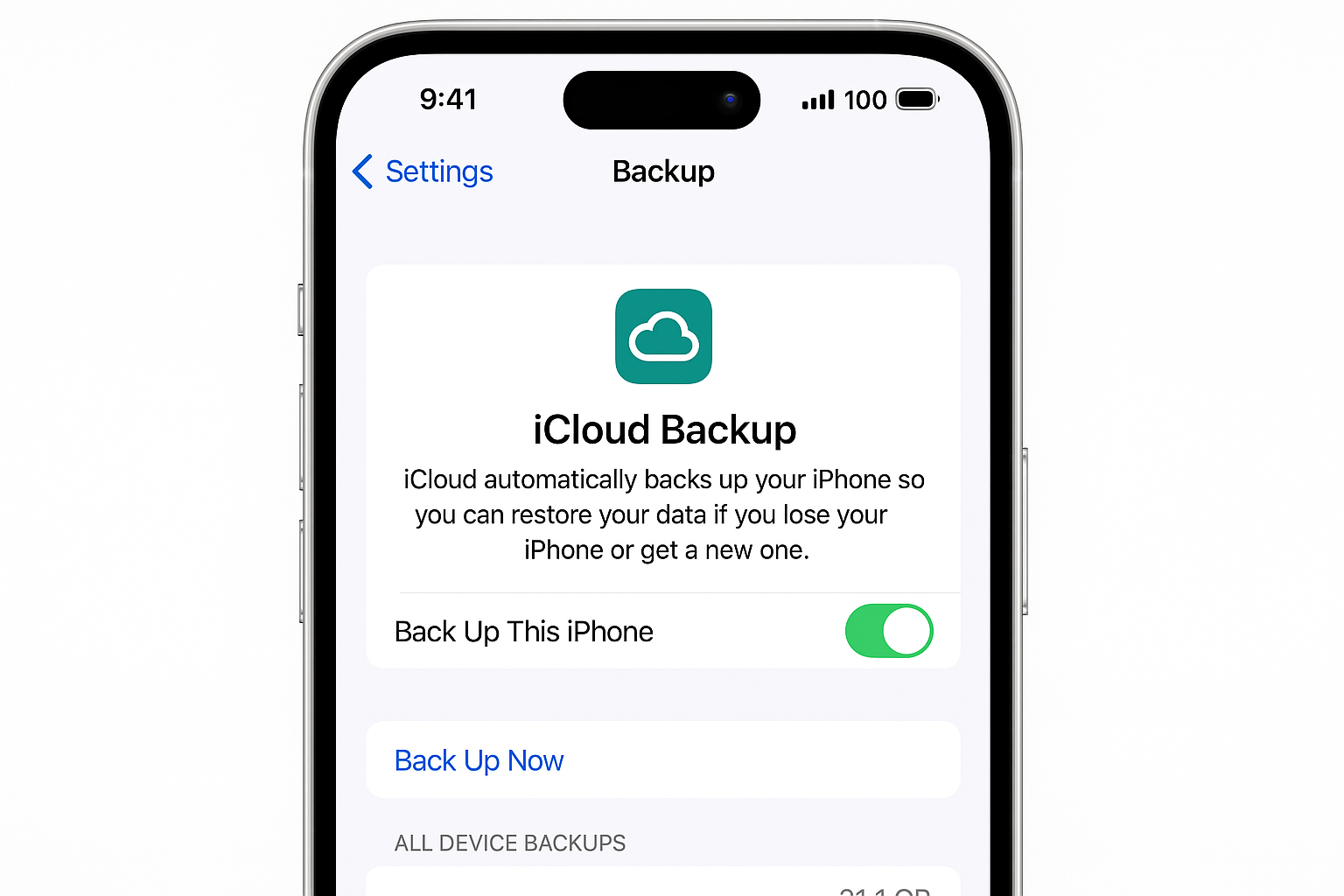
If your phone gets stolen, you want two things: your data backed up somewhere safe, and the ability to wipe the device remotely so thieves can’t access your information.
For Android:
- Go to Settings > Google > Backup and turn on automatic backups
- Enable Find My Device for remote location and wiping
For iPhone:
- Enable iCloud Backup in Settings > [Your Name] > iCloud
- Turn on Find My iPhone for remote tracking and wiping
7. Keep Everything Updated (Especially Security Patches)
This one’s boring but crucial. Security updates often fix vulnerabilities that hackers are actively exploiting. The longer you wait, the more exposed you are.
Enable automatic updates:
- Android: Settings > System > System Update > Automatic system updates
- iPhone: Settings > General > Software Update > Automatic Updates
Don’t forget app updates: Messaging apps, browsers, and financial apps get security patches regularly. Set these to auto-update or check for updates weekly.
8. Use AI-Powered Scam Detection
Modern smartphones can actually detect when you’re being scammed in real-time. Samsung’s latest Galaxy phones include “Suspected Voice Phishing Call Alert” that listens for scam patterns during calls.
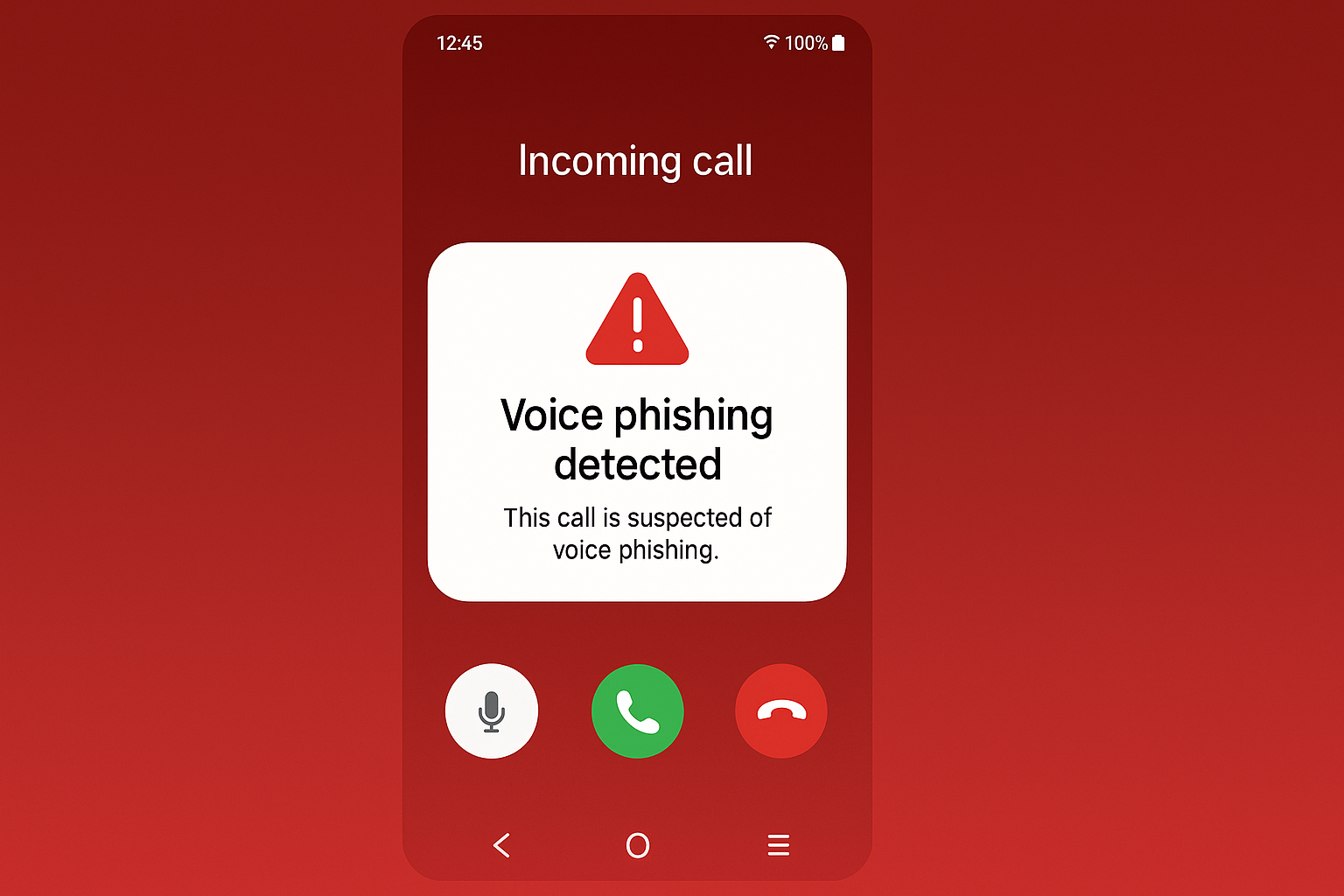
How it works: The AI analyzes speech patterns, background noise, and caller behavior to identify potential scams. If it detects something suspicious, it’ll warn you right on the call screen.
Other built-in protections to enable:
- Smart Lock-Screen Redaction: Hides sensitive notifications (like bank alerts or verification codes) unless you’ve recently unlocked your phone
- Message Guard: Automatically isolates suspicious links and attachments in messages
- Call Screening: Let Google Assistant answer unknown calls and transcribe what they’re saying before you decide to pick up
9. Be Strategic About Wi-Fi and Bluetooth
Public Wi-Fi is still risky, but the bigger problem now is your phone automatically connecting to networks you’ve used before, even if they’ve been compromised since your last visit.
Wi-Fi safety tips:
- Use a VPN on public networks: This encrypts your data even if the network is compromised
- Turn off auto-join for public networks: Make connection a conscious choice, not automatic
- Forget networks you don’t use regularly: Go through your saved networks and delete coffee shops, hotels, etc.
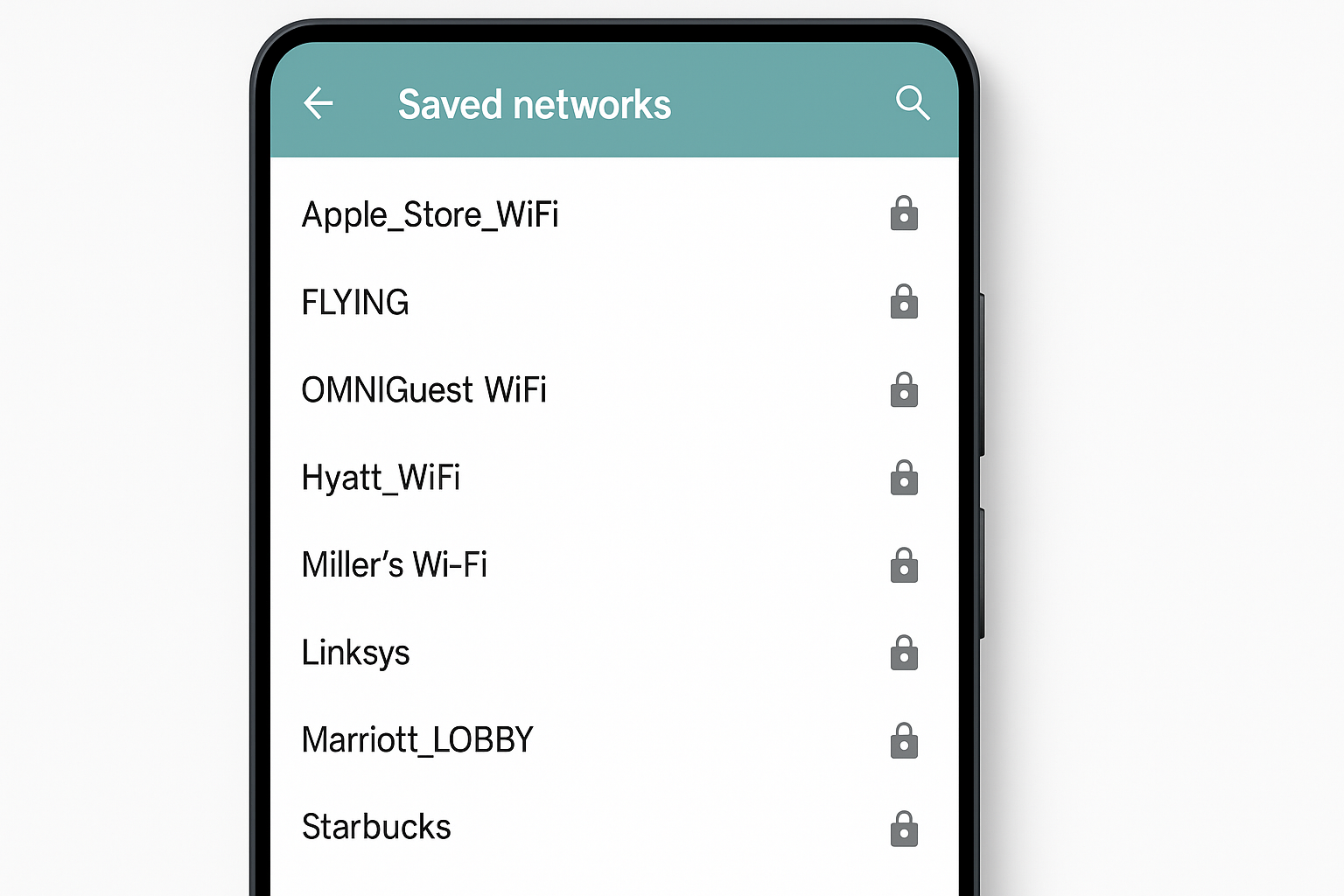
Bluetooth considerations: Modern Bluetooth is pretty secure, but turn off discoverability when you’re not actively pairing devices. And be cautious about fitness trackers or smartwatches that sync sensitive health data.
10. Know What to Do If You’re Compromised
Despite your best efforts, you might still get targeted. Here’s your emergency response plan:
If your phone is stolen:
- Use Find My Device/Find My iPhone to locate and remotely wipe it
- Call your carrier to report the theft and prevent SIM swaps
- Change passwords for important accounts from a different device
- Contact your bank to watch for suspicious activity
If you think you’ve been scammed:
- Don’t panic as scammers rely on rushed decisions
- Hang up and call the organization directly using a number from their official website
- Check your accounts for unauthorized changes
- Enable additional security measures like account alerts
Report the theft to prevent others from being victimized: You can report stolen phones to a shared database that prevents activation on any major carrier. Visit your carrier’s website or call their customer service to add your device to the blacklist.
Wrapping Up
Smartphone security in 2026 isn’t about building an impenetrable fortress, it’s about making yourself a harder target than the person next to you. The combination of biometric authentication, AI-powered scam detection, and smart backup strategies creates multiple layers that would-be attackers have to get through.
The best part? Most of these protections work automatically once you set them up. You’re not trading convenience for security anymore, you’re getting both! Set aside an hour this weekend to enable these features and you’ll sleep better knowing your digital life is actually protected.