In order to provide support for Firefox users in Google Play Store, we’re using a third party tool called Conversocial/Verint. In this article, you will learn more about how to use Conversocial/Verint to handle a conversation on Mobile Support
Table of Contents
How to use Conversocial
Queues
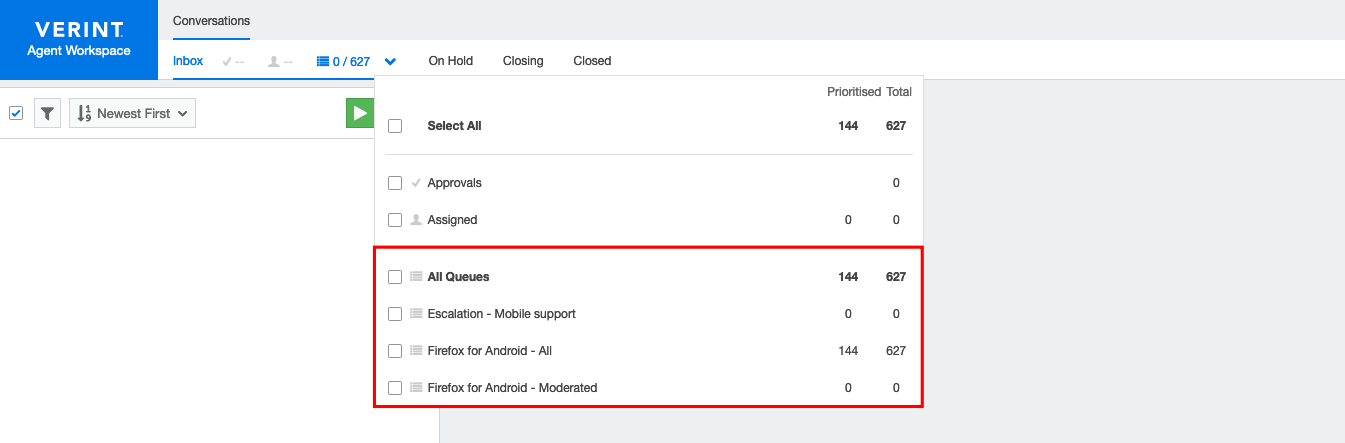
Firefox for Android
Moderator only:
- Firefox for Android - All: This is a queue for all unmoderated conversations from Firefox for Android.
All contributors:
- Firefox for Android - Moderated: This is a queue for Firefox for Android conversations that have been moderated.
Firefox Focus for Android
Moderator only:
- Firefox Focus - All: This is a queue for all unmoderated conversations from Firefox Focus for Android.
All contributors:
- Firefox Focus - Moderated: This is a queue for all Firefox Focus conversations that have been moderated.
Firefox Klar for Android
Moderator only:
- Firefox Klar - All: This is a queue for all unmoderated conversations from Firefox Klar for Android.
All contributors:
- Firefox Klar - Moderated: This is a queue for all Firefox Focus conversations that have been moderated.
Escalation queue
All contributors:
- Escalation: See the escalation section below to understand how you can use the escalation queue.
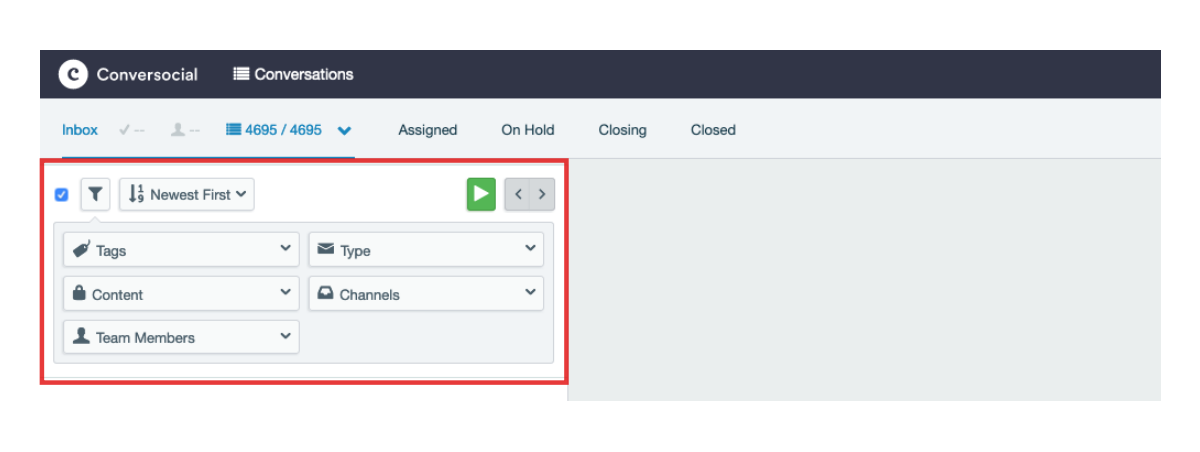
Filtering and Prioritization
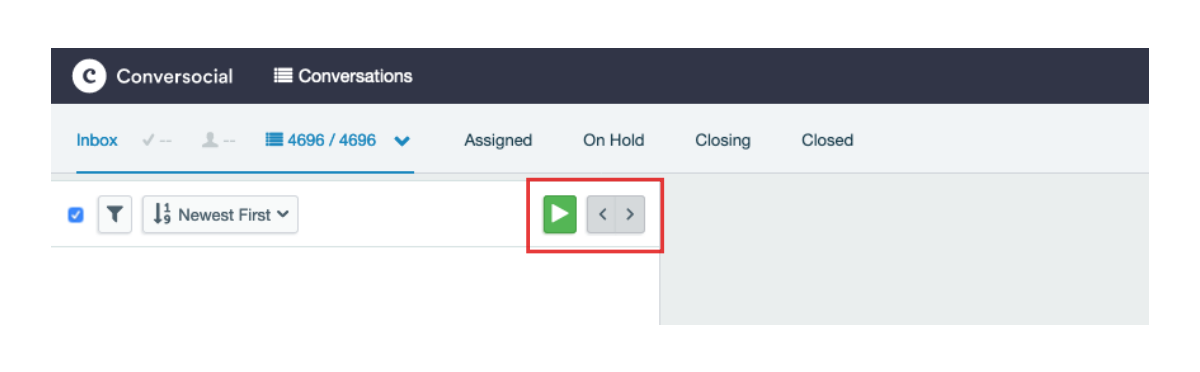
Play Mode
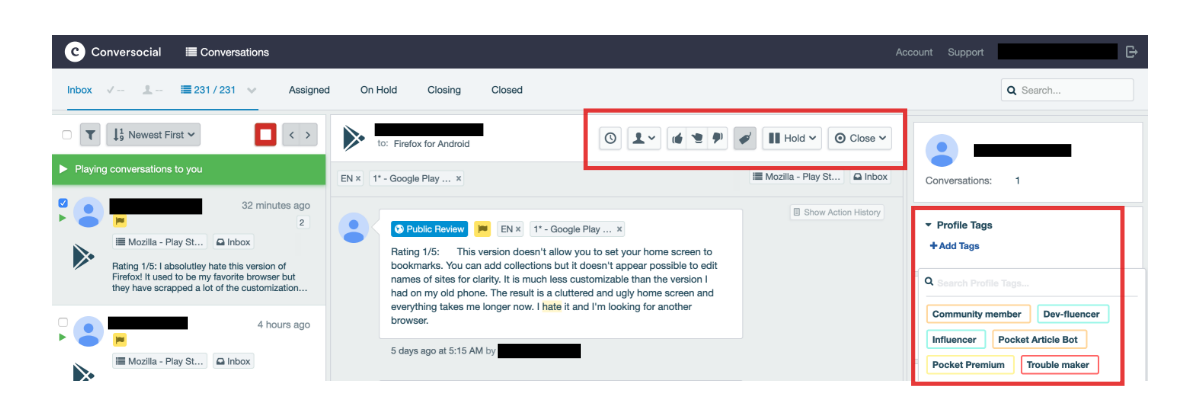
During play mode, you will see more options you can select to customize a conversation you’re currently handling.
Reminder
You can set a reminder for yourself. This will come in handy when you want to remind yourself to work on the conversation later on.
Assign conversation
With this menu, you can assign a conversation to yourself, to others, or to another queue.
Sentiment tone
You can also select the sentiment of the conversation you’re handling to positive, neutral or negative with the 3 buttons provided.
Tag
Please see Mobile Support tagging guidelines to learn more about Conversocial tagging. But in general, as a regular contributor, you can expect that the conversation has been tagged appropriately by a moderator.
Hold
In Mobile Support, you don't need to hold anything since we won't be having back and forth conversation like in the forum or Twitter. When you're done replying to a review, you can directly close/solve the conversation.
Closing options
See this article to check what closing options available in Conversocial.
User’s tag
There’s also an option to put a tag/category for a user. We’re currently have 3 tags:
- Community member: Tag for community member account.
- Dev-fluencer: Tag for a reputable figure on the developer community.
- Influencer: Tag for people who have a large sum of followers or a verified account.
- Trouble maker: This is a tag for everyone who only create noises instead of seriously looking for help.
- Troll account: This is a tag for troll Twitter accounts.
Reply field
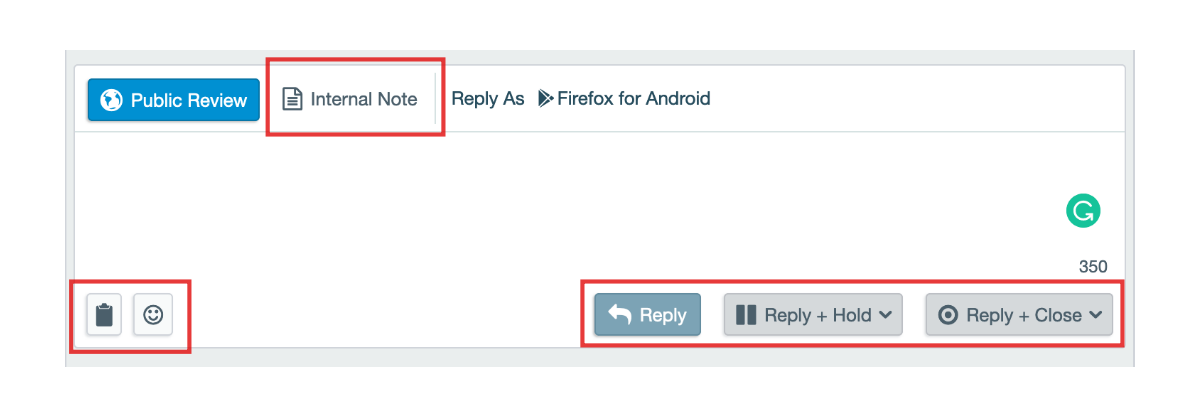
Internal Note
You can use this feature to communicate information that is visible to the other users on the tool.
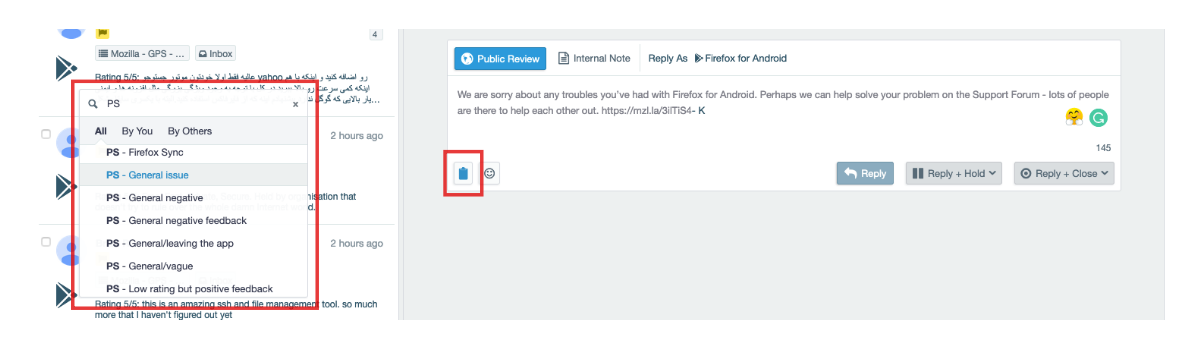
Insert clipping
Insert emoji
You can also add emoji in your reply. Just make sure not to go overboard!
Reply options
There are a few options you can use once you’ve typed your reply in the field:
- Reply: Use this if you want the conversastion stay in the active queue.
- Reply + Hold: Use this to move the conversation to the On Hold queue. They will be automatically moved back to the active queue if the user post a new reply. If not, they will be automatically closed after 3 days.
- Reply + Close: Use this if you want to close the conversation. Clicking this button will prompt the closing options we mentioned before. (Recommended for Mobile Support)
Adding signature
You can set a default signature for your account by following these steps:
- Go to the Account menu on the top right corner of the screen.
- Click on My Signatures menu under the Personal Settings.
- Click the green Save button.
Complete Mobile Support guidelines
Go back to the Mobile Support guidelines to continue learn about mobile support contribution.